 Tasks 'n Timers

“I studied all day” is a feeling, not a measurement. Two weeks later you can't say whether it was three hours or seven, which subject got the time, or whether the week before the exam was really any different from the one before it.
A study tracker fixes that by keeping a record you didn't have to write. This guide covers what a useful study log holds, how to build a streak that survives a bad week, and how to turn your day into a card you can share.
What a study tracker should record
Most people start with a notebook or a spreadsheet and drop it within a month. The log fails when writing it down costs more than the study did. A good study tracker records three things without being asked:
- How long: focused minutes, not time spent sitting at the desk.
- When: the time of day each session ran, so you can see when you really work.
- How often: which days you studied, so a gap shows up before it becomes a habit.
Everything else is optional. Subjects, grades and notes are worth adding only if you will read them.
Why a streak helps you keep studying
Studying every day is hard to keep up for the same reason any habit is: the days you skip look harmless. A visible streak changes that. Missing a day now costs something you can see, and the smallest session is enough to keep it alive.
The streak should be forgiving. A rule of “four hours or nothing” breaks on the first bad day and takes the habit with it. A streak counted against a goal you set yourself, and a floor of one short session, is one you can keep through exam week.
A study tracker on iPhone with Tasks 'n Timers
Tasks 'n Timers is a focus timer built around your to-do list. Every session you finish is logged, so the study log builds itself.
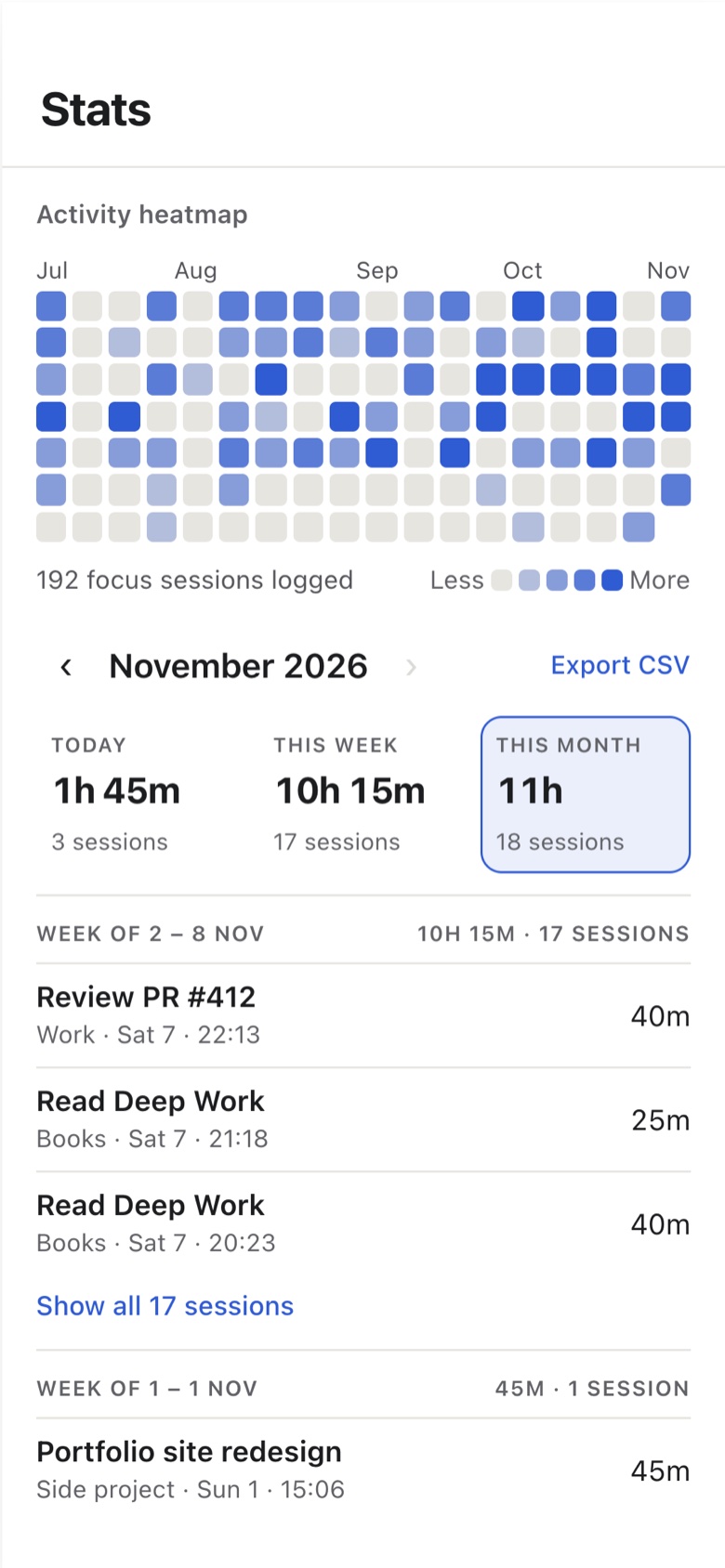
- Sessions logged for you. Start a session from a task (“Chapter 4 problems”) and the time is saved against it. No typing afterwards.
- Study stats. Minutes and sessions for today, this week and this month, plus a calendar heatmap that fills in for every day you studied.
- Log time you forgot to track. Did an hour at the library without the timer? “Log focus time” adds a session for today, so the record stays honest.
- Today's sessions. See what you did today, and edit or delete a session that was wrong.
- A weekly goal and a streak. Set a weekly focus goal in Settings. A day counts as a Win when you reach 90% of that day's share of the goal, and the Timer shows your streak of Wins.
- Estimates per task. Give a task a size, then compare it with the time you actually spent.
Your history stays on your iPhone and, if you connect Google, in a private app folder in your own Google Drive. There is no separate account and no servers of ours.
Share your study day as a card
On the Stats screen, a Share chip sits above the heatmap. Tap it and the app draws a card of your day and opens the iPhone share sheet, so you can send it in Messages, post it to a story or save it to Photos.
The card shows:
- the date and the day's focus time and number of sessions;
- a timeline of the hours you studied;
- your last 12 weeks as a heatmap;
- your streak, once you have two Win days in a row;
- the tasks you finished out of the ones you planned for the day;
- your progress against your daily and weekly goal, if you set one.
It is drawn on your phone from the data already there. Nothing is uploaded, and nothing is shared until you pick where it goes. Sending it to a friend who studies with you is the simplest form of accountability there is: a card with today's date on it is hard to skip.
How to use a study tracker well
- Start every session from a task. “Maths” is a subject; “Past paper 2, questions 1 to 5” is a task. The log is more useful when it says which.
- Track focused time only. If you spent a session on your phone, don't count it.
- Set a goal you can reach on an ordinary week. Raise it later. A goal you miss every week stops meaning anything.
- Check Stats once a week. Look at the total, then at the gaps in the heatmap. One gap is a bad day; two in a row is a habit leaving.
- Keep a floor. One session on your worst day keeps the streak alive.
Annie Dillard's line from The Writing Life is the reason to bother:
How we spend our days is, of course, how we spend our lives.
Common mistakes with a study log
- Logging hours, not focus. Five hours at a desk is not five hours of study. Count the sessions that were really on the work.
- Tracking too much. A log with six fields a session gets dropped. Time and task is enough.
- Chasing the streak at any cost. A 10-second session to keep the chain is cheating yourself. Make the floor small but real.
- Never looking back. A log you don't read is extra work. Five minutes a week is enough.
New to studying in timed blocks? Start with the Pomodoro technique for studying. To see time spent against an estimate for each task, read Pomodoro tracking.
The short version
A good study tracker records how long, when and how often without you writing anything down. Run each session from a task, keep a goal you can reach and a small daily floor, and read your week in Stats. When you want someone to see it, share the card.