 Tasks 'n Timers

You download a Pomodoro timer app, set it to 25 minutes, and press start. It works for a day or two. Then you notice the timer doesn't know what you're working on, the history is a row of tomatoes, and your real to-do list lives in another app. By the end of the week the timer is in a folder you never open.
The Pomodoro Technique itself is simple: pick one task, work on it for a set block of time, rest, repeat. Almost any timer can count down 25 minutes. What separates an app you keep from one you delete is everything around the countdown. This guide covers what to look for, and how to run your first focused day with one.
Why a plain countdown isn't enough
A timer on its own answers “how long?” but not “on what?”. That second question is the whole point. The technique works because it makes you choose one thing and stay with it, and a timer that never asks what that thing is lets you drift between three.
It is not that we have a short space of time, but that we waste much of it.
The other gap is memory. If the app forgets each session the moment it ends, you can't answer simple questions a week later: which task took most of my time? Did that report really take two hours, or five? Without a record, every estimate you make stays a guess.
What to look for in a Pomodoro app
Six things make the difference between a timer you try and one you keep.
- It starts from a task. The best Pomodoro app is one where you tap a task and the timer starts on it, so choosing what to work on is part of starting, not an extra step.
- It keeps time when your phone is locked. You should be able to lock your phone, or switch apps, and still be told when the session ends.
- It lets you keep going. Sometimes 25 minutes is exactly when the work starts flowing. A good timer lets you add time while the session runs instead of forcing a stop.
- It remembers. Every session should be saved against the task it was for, with a daily and weekly view, so you can see where your time went.
- It works with the list you already have. Retyping your tasks into a timer app is the first habit to break. Look for one that reads the to-do list you use. Our pick of the best Pomodoro app for Todoist and Google Tasks compares five that do.
- It's honest about your data and your money. A free Pomodoro app should be useful without an account, and your history should stay yours.
A Pomodoro app for iPhone that starts from your tasks
Tasks 'n Timers is a to-do list with a focus timer built in, so the six points above are how it works rather than add-ons.
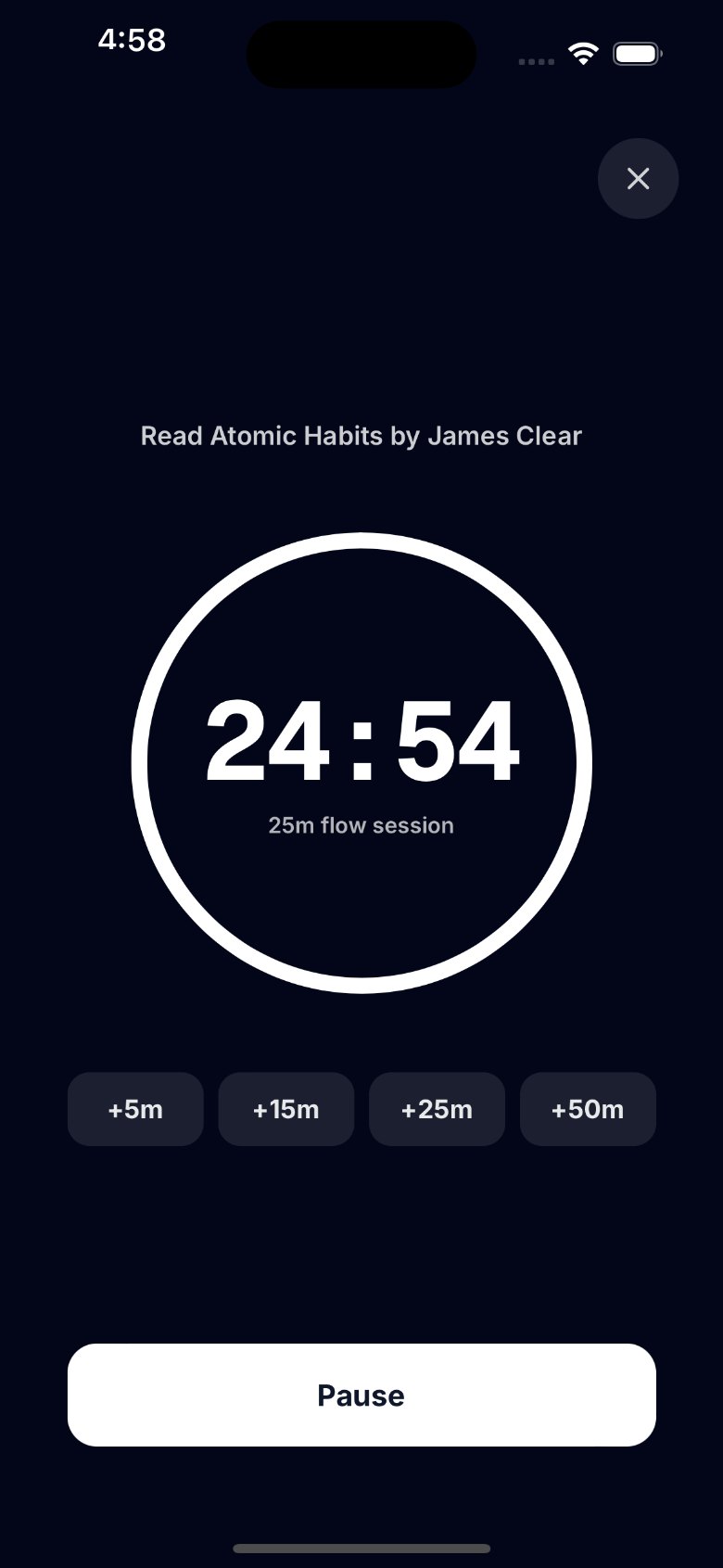
- Start from any task. Tap a task and start a session on it, or run one with no task at all. The default length is 25 minutes, and you can pick 5, 10, 15, 25, 45 or 50 in Settings, or choose a length for one session from the Start button.
- Locked phone, still on time. The timer runs on the clock, not on the app staying open, and, with notifications on, your iPhone tells you when the session is complete.
- Extend while it runs. In the zone? Tap +5, +15, +25 or +50 minutes while the session is running. When it reaches zero, the session ends and is logged.
- Pause, or go full screen. Pause a session if you're interrupted. Zen mode fills the screen with the task you're on, the time left, and the extend and pause buttons.
- Every session saved. Sessions are logged to their task. Today's sessions are listed on the Timer, where you can edit or delete one. Stats shows minutes and sessions for today, this week and this month, with a heatmap of the last four months.
- Your Google Tasks, both ways. Connect Google and your lists are your Google Tasks lists, synced both ways. No Google account? Lists on your phone work fine.
- No account of ours. Your history stays on your iPhone and, if you connect Google, in a private app folder in your own Google Drive.
One honest difference: the app doesn't run a break timer for you. When a session ends, you decide when to rest and when to start the next one.
If you want sessions that adapt to your energy rather than a fixed 25 minutes, see our guide to the flow timer, which also covers the Flowtime technique, where there is no set length at all. For keeping score over a week, see Pomodoro tracking. Not sure 25 minutes is right for you? Our focus timer guide covers how long to focus and how to protect a session.
How to run your first day with a Pomodoro timer app
- Write down today's three tasks. Not ten. Three you'd be glad to finish. If you use Google Tasks, they're already in the app.
- Make the first one small. Pick a task you can finish, or clearly move forward, in one or two sessions. An early win sets the tone.
- Start from the task. Tap it and start a 25-minute session. Put the phone face down.
- Notice the urge to switch. When you want to check something, write it down on paper and go back. That's the technique working.
- Extend or stop on purpose. If you're flowing near the end, extend. If not, let it finish.
- Rest for five minutes. Stand up, look away from screens, get water.
- Repeat, then look back. At the end of the day, open today's sessions and Stats. Which task took the most time? Was it the one that mattered most?
The short version
A Pomodoro timer app is worth keeping when it starts from a task, keeps time when your phone is locked, lets you keep going when work flows, remembers every session, and works with the list you already have. Tasks 'n Timers does each of those on iPhone, with your Google Tasks or with no account at all.