 Tasks 'n Timers

Most Pomodoro tracking is a row of tomatoes. You finish a session, you tick a box, and at the end of the day you have a number: seven. Seven what? Seven sessions of what, for which task, and was that more or less than you expected?
A count on its own can't answer any of that. Pomodoro tracking only becomes useful when each session is tied to a task, and each task has an estimate you can compare it with. This guide shows how to track Pomodoros so the numbers teach you something: how long your work really takes, where your week went, and whether you're keeping the habit going.
What most Pomodoro trackers leave out
A paper tracker, a web tool or a plain timer will count sessions. What they usually don't do is connect three things:
- The plan: how many Pomodoros you thought a task would take.
- The work: the sessions you actually spent on it.
- The pattern: how those sessions add up across days and weeks.
Without the plan there is nothing to compare against. Without the link to a task, “7 Pomodoros” is a total with no story. Without the pattern, one good day looks the same as a good month.
Why estimating comes first
Psychologists Daniel Kahneman and Amos Tversky named the problem the planning fallacy in 1979: people predict how long their own tasks will take from the best case they can imagine, and so they run late again and again, even when they remember that last time went long.
The way out is not to estimate harder. It's to estimate, measure, and let the gap correct you. If you guess three Pomodoros for “write the intro” and it takes five, that's not a failure: it's the most useful number in your week, because next time you'll guess four.
An estimate also gives the work a size. A task with a size has an end, and a task with an end is easier to start. If you plan in Todoist, here's how Todoist time tracking fits with this.
How to track Pomodoros so they mean something
- Write tasks you can finish. “Thesis” is a project. “Write the methods section” is a task. If you think a task will take more than five to seven Pomodoros, split it.
- Estimate before you start. One number per task: how many Pomodoros, or how many hours. Don't aim for accuracy; aim for a number you can be wrong about.
- Run each session on a task. Start the timer from the task itself, so the time lands in the right place instead of in an anonymous total.
- Check the gap. After the task, look at the time spent next to your estimate. Over? Under? Write nothing down; just notice.
- Look at the week, not just the day. One day tells you how you felt. A week tells you what you did.
Pomodoros or hours?
Counting in Pomodoros suits work that fits in even blocks: reading, flashcards, writing in short bursts. Hours suit longer or messier work. Pick one and stay with it for a few weeks, because the comparison only works if the unit stays the same.
Pomodoro tracking on iPhone with Tasks 'n Timers
Tasks 'n Timers is a Pomodoro timer built around your to-do list, so tracking is part of how it works rather than a separate chore.
- An estimate on every task. When you add a task, the app suggests a length from its title (for example, “reply to email” gets a short one and “write the report” a long one). It works on your phone, with no network. You change it with a − and + stepper, in Pomodoros or in hours, whichever you pick in Settings.
- Time spent, next to the estimate. Each task shows what you've spent against what you planned, so the gap from step 4 is visible without any maths.
- Sessions that belong to a task. Start a session from a task and the time is logged to it. You can also run a session with no task, and it still counts in your totals.
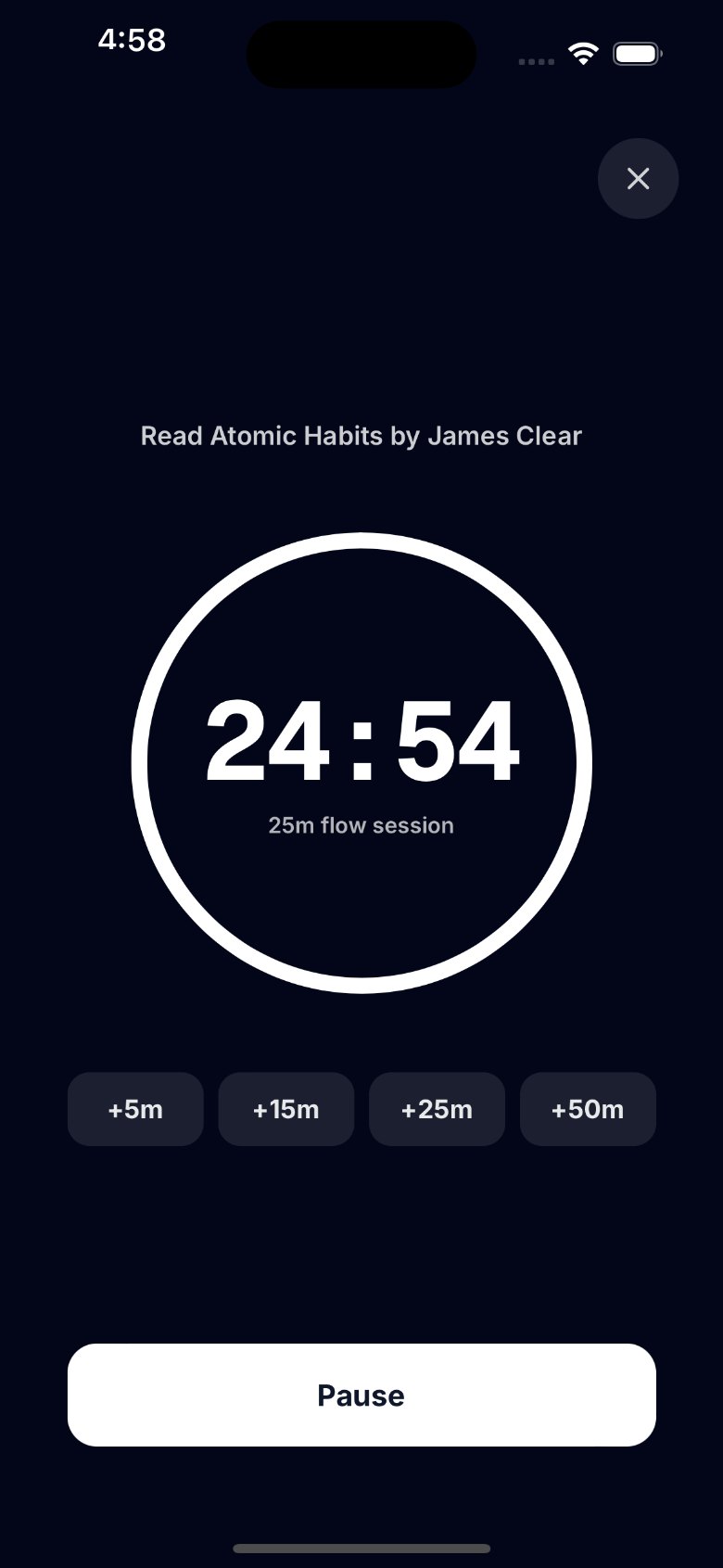
- Extend while it runs. If you're in the zone, tap +5, +15, +25 or +50 minutes while the session is running to keep going. Once it reaches zero, the session ends and is logged. The app doesn't run a break timer for you; you choose when to rest.
- Log time you forgot to track. Did an hour of focused work without the timer? “Log focus time” adds a session for today, so the record is honest.
- Today's sessions. On the Timer, open today's sessions to see what you did, and edit or delete a session that was wrong.
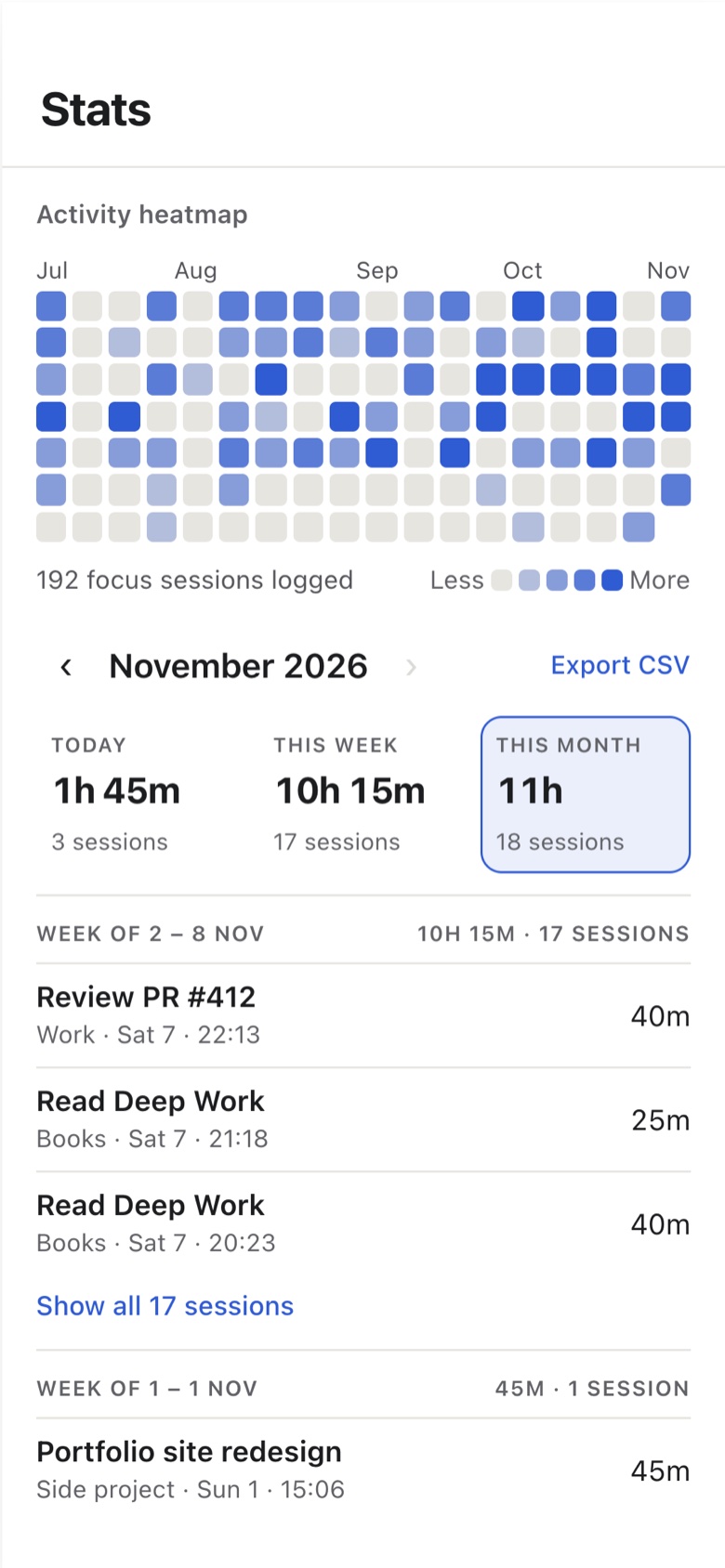
- Stats. Minutes and sessions for today, this week and this month, with a calendar heatmap that fills in for every day you complete a session, over the last four months.
- A weekly goal, if you want one. Set a weekly focus goal in Settings and your week fills towards it. A day counts as a Win when you reach 90% of that day's share of the goal, and the Timer shows your streak of Wins.
- Google Tasks, both ways. Your lists are Google Tasks lists, synced both ways, so the tasks you track are the ones you already have. No Google account? Local lists work fine.
Your history stays on your iPhone and, if you connect Google, in a private app folder in your own Google Drive. There is no separate account and no servers of ours.
What to look at each week
Once a week, for five minutes:
- Open Stats. Look at this week's minutes and sessions. Is it what you meant?
- Scan the heatmap. Look for gaps, not for the darkest squares. One gap is a bad day. Two in a row is a habit leaving.
- Open the tasks you finished. For each, compare time spent with the estimate. If you were over on writing tasks three times, estimate higher next time.
- Pick next week's floor. One session a day, even on bad days, keeps the chain alive. The goal isn't a record; it's not breaking twice.
Annie Dillard's line from The Writing Life is the reason to bother:
How we spend our days is, of course, how we spend our lives.
The heatmap and the weekly totals show how you actually spent your days, not how you remember spending them.
Common mistakes in Pomodoro tracking
- Counting without naming. “7 Pomodoros” tells you nothing. “3 on the report, 2 on email, 2 on reading” tells you where your day went.
- Estimating after the fact. An estimate made once you know the answer isn't an estimate.
- Chasing the number. A session where you checked your phone every two minutes is not a clean Pomodoro. Don't count it just to fill a square; log it honestly or start again.
- Changing the unit every week. Pomodoros one week and hours the next makes the comparison meaningless.
- Never looking back. Tracking you don't read is just extra work. Five minutes a week is enough.
Comparing apps? See Forest vs Tasks 'n Timers: one counts time away from your phone, the other counts time against a task.
The short version
Pomodoro tracking works when each session belongs to a task and each task has an estimate. Estimate before you start, run sessions on the task, compare the time spent with the estimate, and read your week in the stats and the heatmap. The tomatoes are not the point. The learning is.