 Tasks 'n Timers

If you run your life in Todoist, you already know how to capture work. Projects, due dates, a clean Today view. What Todoist doesn't do is tell you how to sit down and finish one thing. That's where a Todoist Pomodoro routine comes in: pick one task, give it a short block of time, and work on nothing else until the block is over.
This guide shows how to set that up with Todoist today, using only what Todoist already has. It also covers what a timer built around your Todoist tasks should do, and how Tasks 'n Timers does it.
Why a task list alone isn't enough
Todoist is very good at the “write it down” half of productivity. A Today view with twelve tasks on it is still just a list of twelve equally important things, and it leaves the hardest decision, which one, right now?, to you.
What a list can't do is decide where your attention goes. The psychologist William James wrote in 1890 that attention is what shapes a day:
My experience is what I agree to attend to.
A day of twelve open tasks, with your attention hopping between them, is a day spent mostly switching. A task with no time attached also has, in effect, all day, so it tends to take it. Giving one task one short block is a way of agreeing, on purpose, what you'll attend to next.
The Pomodoro technique, which Francesco Cirillo developed as a university student in the late 1980s, packages that idea: one task, a fixed block, a short break, repeat.
Set up a Todoist Pomodoro timer routine
Todoist's own guide to the Pomodoro technique doesn't point to a built-in timer. It says any timer will do: your phone's, a kitchen timer, or a digital Pomodoro app that integrates with Todoist. What Todoist adds is the planning side, and that's the part that makes the timer worth using. The steps below follow that guide:
- Plan in Today. Move the tasks you'll really do into Today, in the order you'll do them. Todoist suggests postponing some tasks if you're past about 12 to 14 Pomodoros for the day, so fewer than you think.
- Size each task in Pomodoros. Todoist's suggestion is to add tomato emojis to the end of the task name for your estimate, one per 25-minute block. It also suggests breaking anything bigger than four Pomodoros into subtasks.
- Start one block on one task. Set a 25-minute timer and work on that task only. If something else comes to mind, capture it in your Inbox and go back.
- Break, then repeat. Take a five-minute break after each block, and a longer one of 15 to 30 minutes after four.
- Close the loop. Complete the task in Todoist when it's done. Move anything unfinished to tomorrow instead of letting Today grow.
That works with any timer. The weak spot is the gap between the timer and the list. A separate timer doesn't know which Todoist task you were working on, so at the end of the day you have a pile of “25:00” blocks and no record of what they were for.
Todoist time tracking: estimate, then compare
People searching for Todoist time tracking usually want one of two things: how long a task will take, or how long it did take. Todoist covers the first with task durations, which you can add in the task name or in the scheduler. A duration says how long you plan to spend. It isn't a record of how long you did spend, and Todoist lists separate time-tracking integrations for that.
Getting both is what turns a Pomodoro habit into planning that improves. Hofstadter's Law says it always takes longer than you expect, even when you account for Hofstadter's Law. The only fix is feedback: estimate, time the work for real, and compare. Our guide to Pomodoro tracking shows how to do that.
Todoist in Tasks 'n Timers
Tasks 'n Timers is an iPhone app where your task list and a focus timer are the same screen. It works with Todoist, with Google Tasks and with lists that live only on your phone. This is what it does with Todoist, so you can see whether it fits how you work:
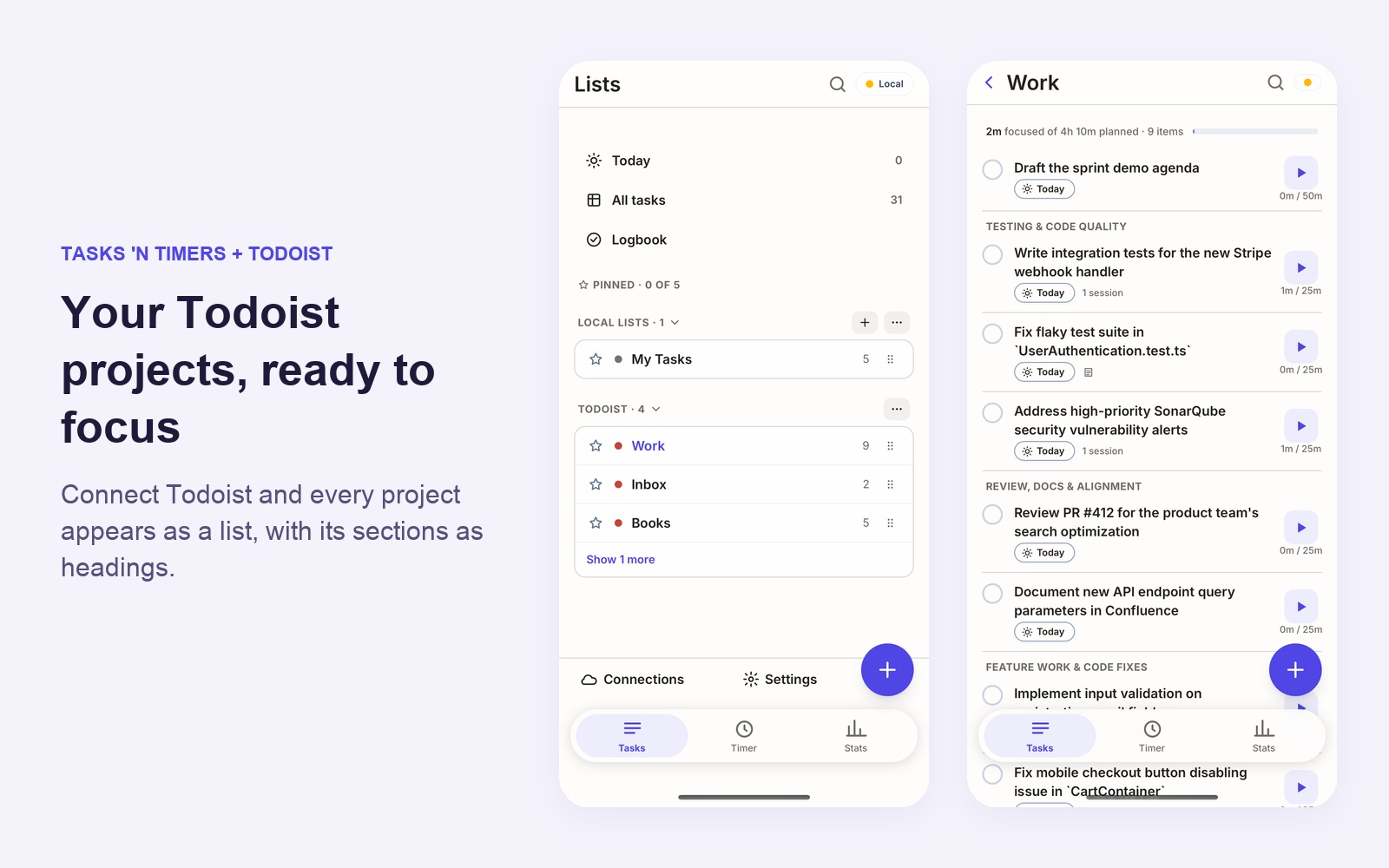
- Your Todoist projects as lists, with subtasks as rows and sections as headings.
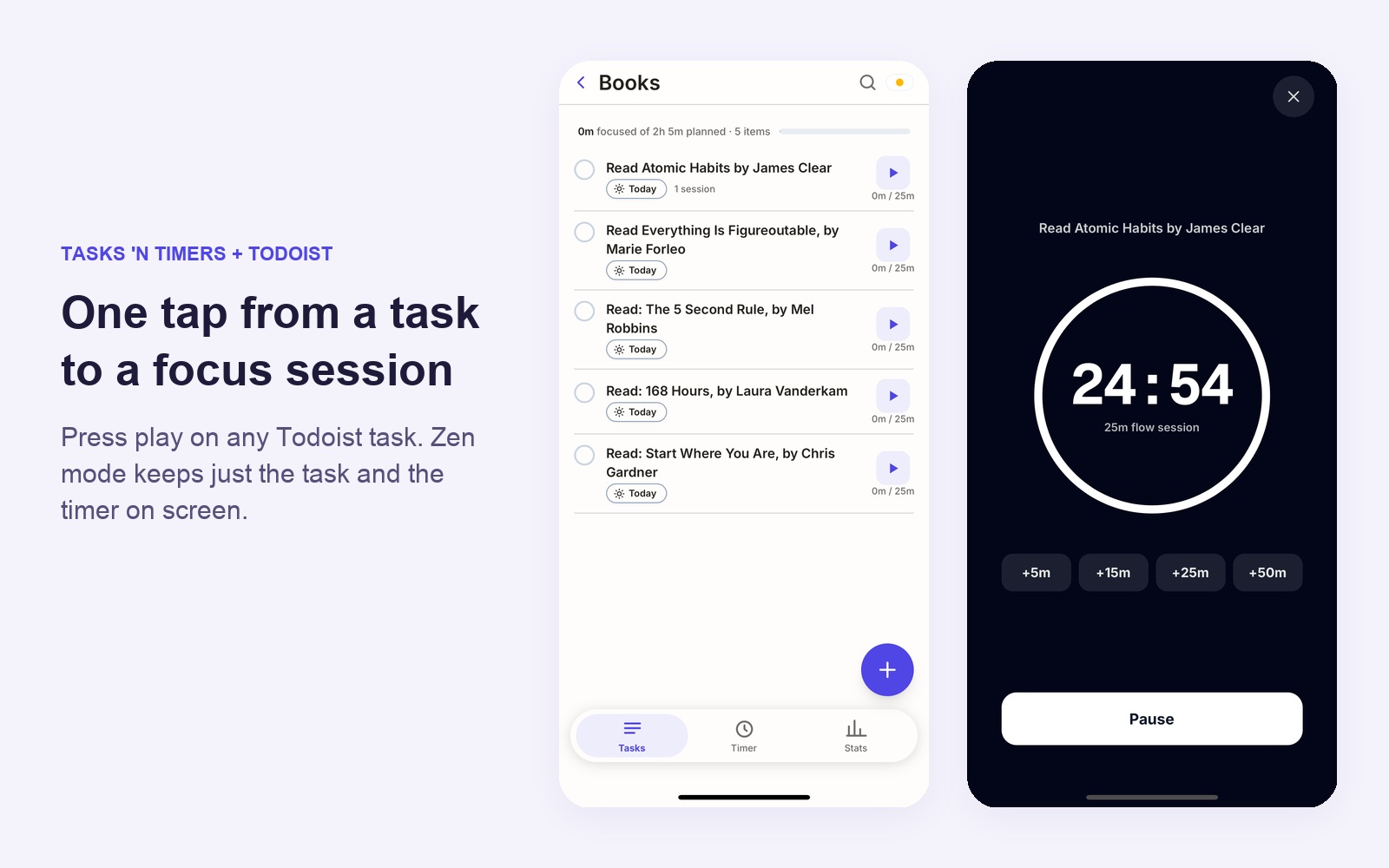
- One tap from a Todoist task to a focus session, with the time logged against that task.
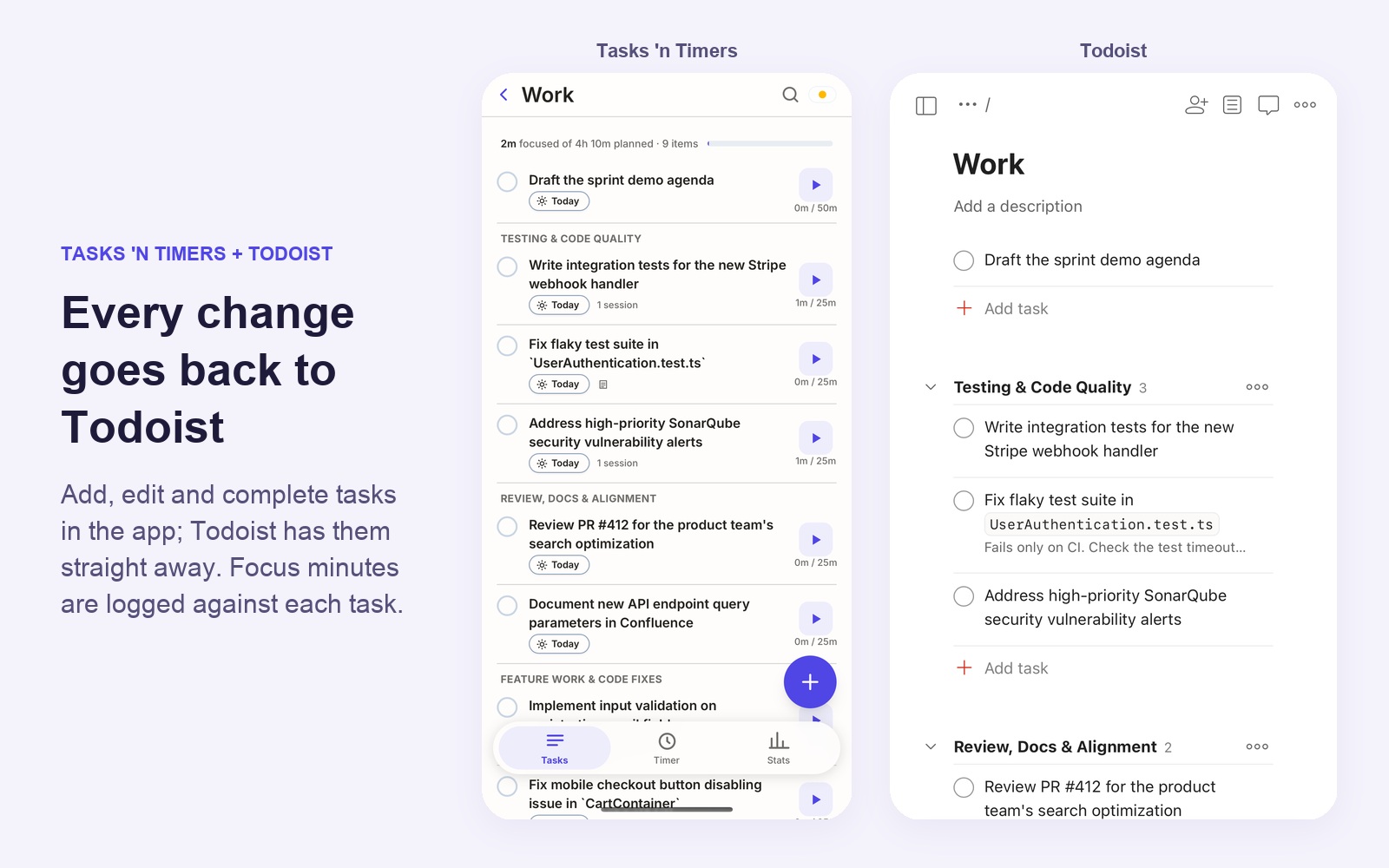
- Complete, edit and add Todoist tasks from the app, with changes sent back to Todoist.
- Today, estimates and your week in one place, the same as for Google Tasks.
- Your focus history stays yours, on your iPhone and, if you also connect Google, in a private app folder in your own Google Drive. Nothing goes to servers of ours.
The timer, local lists and Google Tasks are free. Todoist is part of the optional Pro upgrade: monthly or yearly with a free trial week, or a one-time Lifetime purchase.
See it in action
Watch the walkthrough (1:44, captioned): connect Todoist, open a project, run a focus session on a task, then edit, add and complete tasks and see each change in Todoist.
Connect Todoist
- Download Tasks 'n Timers from the App Store on your iPhone.
- Open the app and go through the short welcome tour.
- Tap Tasks, then Connections.
- On the Todoist card, tap See what Pro includes and choose a plan: the free week on Monthly or Yearly, or Lifetime.
- Tap Connect Todoist, sign in to Todoist and tap Allow access.
- Your projects appear as lists. Open one and tap the play button on any task to start a focus session.
The short version
You don't need a new system to use the Pomodoro technique with Todoist. Plan Today, size each task, run one block at a time on one task, and review what actually happened. A timer that knows which task you're working on makes that last step possible. Tasks 'n Timers is one, for Todoist and for Google Tasks.
Sources and further reading
What this guide says about Todoist comes from Todoist's own pages, checked on 2026-10-29:
- Todoist: the Pomodoro technique: the steps, tomato emojis in task names, subtasks above four Pomodoros, break lengths, the 12 to 14 Pomodoro daily limit, and the note that any timer works.
- Todoist Help: Pomodoro with Todoist: setting up a Pomodoro day in Todoist.
- Todoist Help: Set a task duration: how to add a duration to a task.
- Todoist integrations: time tracking: the apps Todoist lists for tracking time.
Tasks 'n Timers is an independent app and isn't made or endorsed by Todoist.