 Tasks 'n Timers

If you use Google Tasks, you already have a good Google Tasks app on your iPhone: Google's own. It's clean and quick for keeping a list: add a task, give it a date, tick it off. What it isn't built for is working through that list. There's no focus timer, no sense of how long each task will take, and no record of where your time actually went.
So you open it in the morning. Fourteen items look back at you. Some have been there since spring. You tick off two easy ones, answer an email, and somehow it's 4pm.
The list didn't fail you. It did exactly what a list is for: it remembered things. What it can't do is tell you what to work on now, for how long, or where the day actually went. That gap between “written down” and “done” is where most to-do lists quietly die.
Why a list alone isn't enough
Lists are for capturing, not doing
David Allen, who wrote Getting Things Done, put the case for lists in one line:
Your mind is for having ideas, not holding them.
Google Tasks is brilliant at this half of the job. Get everything out of your head and into a trusted place, and your brain stops nagging you about it.
But capturing is only half of Allen's system. The other half is engaging: picking one thing and actually doing it. A list has no opinion about that. It shows all fourteen items with equal weight, and leaves the hardest decision of the day, which one, right now?, to you, every single time.
Work expands to fill the time you give it
In 1955 the historian C. Northcote Parkinson wrote a half-joking essay in The Economist that turned out to be one of the most quoted lines in productivity:
Work expands so as to fill the time available for its completion.
A task with no time attached has, in effect, all day. That's why “write the project update” can eat a whole afternoon. Giving a task a boundary, this gets 25 minutes, is one of the simplest ways to make it smaller.
We're bad at guessing how long things take
The opposite problem is just as real. The cognitive scientist Douglas Hofstadter coined a law about it:
It always takes longer than you expect, even when you take into account Hofstadter's Law.
Plan a day from a bare list and you'll almost always plan too much. The only cure is feedback: estimating, timing what really happened, and letting the gap teach you.
Switching is expensive
The attention researcher Gloria Mark at UC Irvine has found that after an interruption it takes people around 23 minutes, on average, to get fully back to the original task. Jumping between items on a list, or between your list and your inbox, isn't free. Every switch costs you a warm-up.
Cal Newport's book Deep Work is built on the flip side of that finding:
To produce at your peak level you need to work for extended periods with full concentration on a single task free from distraction.
One task. A protected block of time. That's the unit of real progress, and it's exactly what a plain list never gives you.
What to look for in a Google task manager
Put those ideas together and you get a short checklist for any Google task manager or task list app worth adding to your phone:
- A plan for today. Not just one long list, but the few tasks you'll actually do.
- A way to choose one task. (Allen's “engage” step.)
- A boundary for it. (Beat Parkinson's law.)
- A rough size for it. (Respect Hofstadter's law.)
- A protected block. (Newport's deep work, Mark's switching cost.)
- A record of what really happened, so tomorrow's plan is better than today's.
- Your real Google Tasks, kept in sync, so Gmail, Calendar and Google's own apps stay up to date and you never keep two lists.
Points 2 to 5 are what the Pomodoro Technique has always been about. Francesco Cirillo developed it as a university student in the late 1980s, timing his study sessions with a tomato-shaped kitchen timer (pomodoro is Italian for tomato). The trouble is that most timers live in a separate app from your list, so the history you collect is a pile of “25:00” blocks with no idea what they were for. A few timers now read Google Tasks directly: our comparison of Google Tasks integrations for focus sets five side by side.
How Tasks 'n Timers works with Google Tasks on iPhone
Tasks 'n Timers is an iPhone app built so your Google Tasks list and a focus timer are the same screen. Connect your Google account and your Google Tasks lists come straight in. Every task gets a play button and a time estimate.
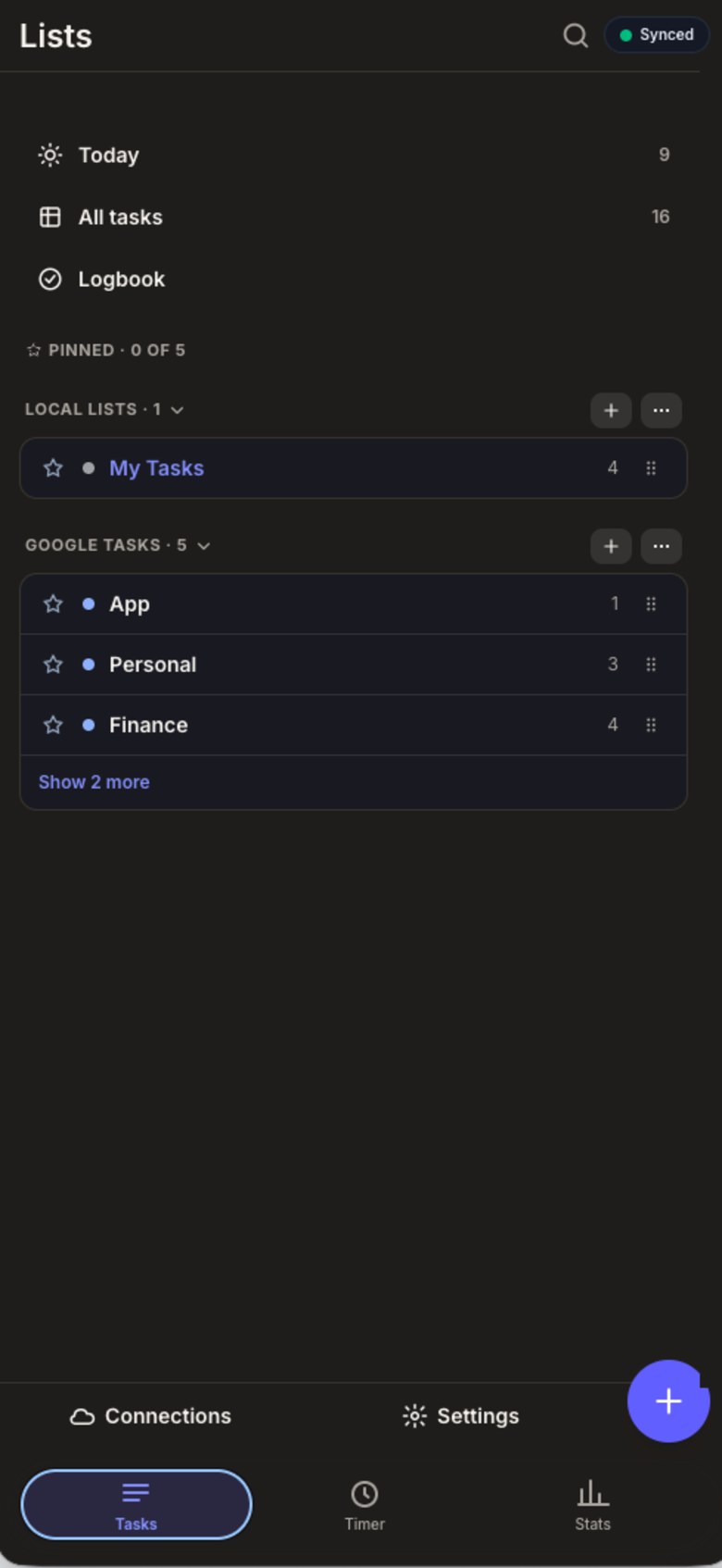
- Synced both ways. Changes you make in the app sync back to Google Tasks, so Gmail, Calendar and Google's own app stay up to date.
- One tap from list to focus. Tap play on a task and the session starts on that task.
- An estimate on every task. Worked out on your iPhone, and yours to accept or change in one tap. Compare it with the time you spend in our guide to Pomodoro tracking.
- A Today plan. Pull three or four tasks into Today instead of staring at all fourteen. It carries over to tomorrow.
- Boundaries that bend. Pick 5, 15, 25 or 50 minutes. If you're on a roll as it runs down, add more time with one tap.
- Zen mode. A full-screen countdown with just your task and the timer's buttons.
- Real minutes, logged. Every session records the minutes you actually focused. Your stats show today, this week and this month, plus a heatmap of every session.
And it stays private: your history lives on your iPhone and, if you connect Google, in a private app folder in your own Google Drive. There's no separate account and no servers of ours.
How to use Google Tasks with a focus timer on iPhone
If you're comparing timer apps first, see Forest vs Tasks 'n Timers: Forest is built around a growing tree rather than a task list, and it doesn't sync with Google Tasks. For what makes any Pomodoro app worth keeping, see our checklist.
- Get the app. Download Tasks 'n Timers on the App Store.
- Connect Google Tasks. Sign in with Google and all your Google Tasks lists appear. (Prefer not to sign in? Local lists work with no account.)
- Build today's plan. Add three or four tasks to Today. Fewer than you think. Hofstadter is watching.
- Check the estimates. Each task shows one. Accept it or change it in one tap, and make sure Today fits the hours you actually have.
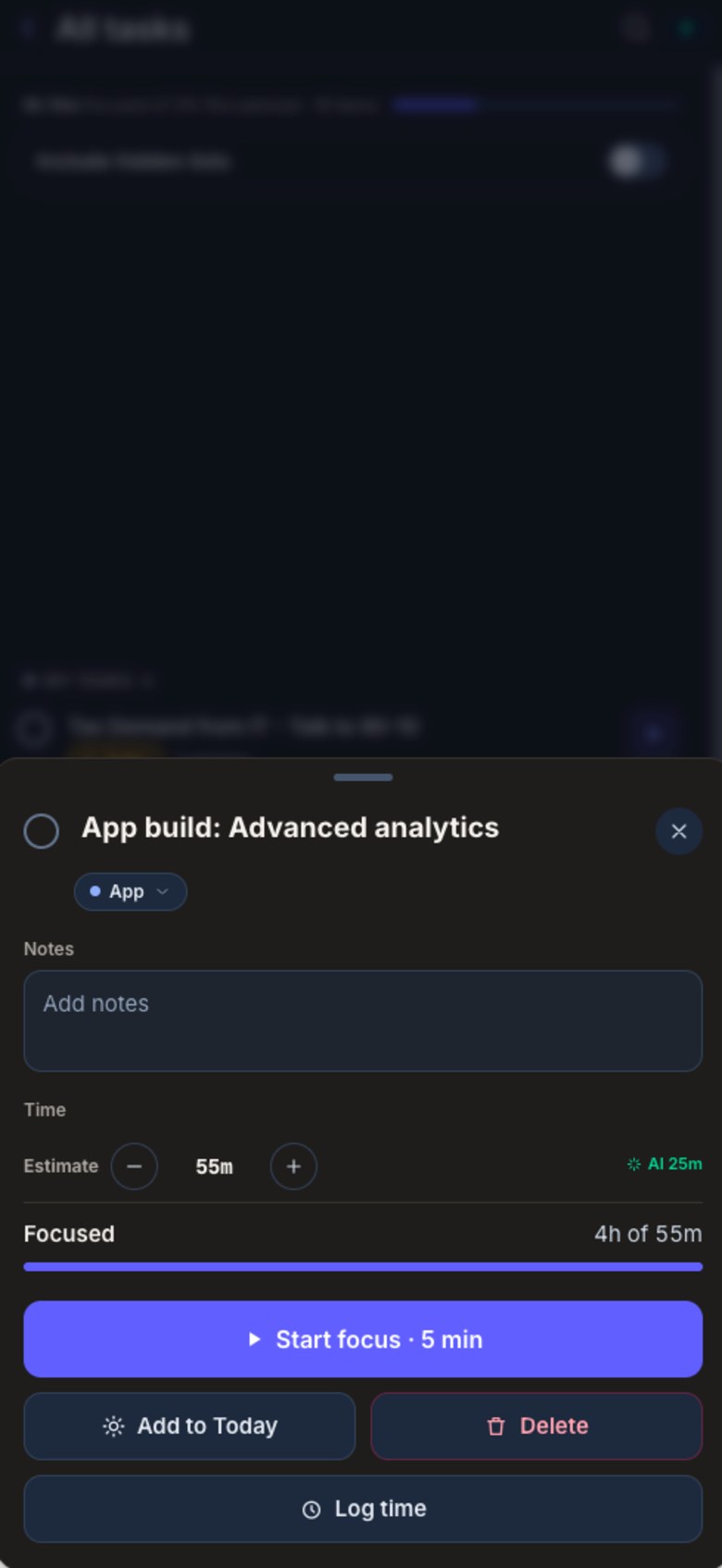
Each task's estimate, Add to Today, and one tap to start - Press play on the first task. Choose a session length. 25 minutes is the classic Pomodoro; 15 is a good start for a task you've been avoiding.
- Let Zen take over. Zen mode opens on its own when the session starts: a full-screen countdown with your task. Keep the phone where you can glance at it.
- Extend or stop. Glance at the countdown before it reaches zero. In the zone? Tap +5 to +50 to keep going. Otherwise let it finish, take a break and move to the next task. Once it hits zero the session is logged, and the next one is a fresh start.
- Look back at the end of the day. Open your stats and compare the minutes you focused with the estimates you made. That's tomorrow's plan, improved.
The short version
Google Tasks remembers what you need to do. It doesn't help you actually do the work. You don't need a new to-do system. You need the lists you already trust, with a plan for today and a play button next to every task.
Use Todoist instead? Here's how to set up a Todoist Pomodoro routine.