 Tasks 'n Timers

You sat down to “quickly tidy up the slides”. It's now lunchtime. The slides look great. Nothing else on your list has moved.
The slides didn't need three hours. They took three hours because nothing said they couldn't. Timeboxing is the simple fix: before you start a task, you decide how much time it gets, and when that time is up, you stop or consciously choose to go on. This guide covers what timeboxing is, the difference between hard and soft timeboxes, how it compares with time blocking and Pomodoro, and how to do it from the task list you already have.
What is timeboxing?
Timeboxing means giving a task a fixed amount of time, its timebox, and working to that limit instead of working until the task feels finished. The box is the decision. “Write the proposal” has no end. “Write the proposal: 90 minutes” does.
The idea came from software project management, where teams fixed the deadline and cut the scope to fit, rather than letting the scope push the deadline. Scrum still runs on it: every event has a maximum length. People now use the same idea for a single task, an afternoon, or a whole day.
Time box meaning, in one line
A time box is the most time you will spend on something. When it runs out, you stop, or you decide on purpose to give it more.
Why timeboxing works
Work fills the space you give it
Most people know Parkinson's law even if they've never heard the name: a task left open-ended grows to fill whatever time is around it. The slides above weren't a discipline problem. They were a sizing problem. A box makes the size visible before you start, when it's still cheap to change.
Time is the one thing you can't get more of
Peter Drucker, who spent his career watching how effective managers actually worked, put it plainly:
Time is the scarcest resource, and unless it is managed nothing else can be managed.
A to-do list tells you what to do. A box on each item tells you whether the list fits in the day. Ten tasks of 45 minutes each is not a day's work; it's two.
A box makes starting easier
“Clean up the inbox” is a chore with no edge. “Inbox, 20 minutes” is a small, finite promise. A box turns a vague task into one you can say yes to, which is half the battle with anything you've been avoiding.
It shows you how good your guesses are
This is the part most guides skip. Every box is a prediction. When a 30-minute box takes 70 minutes, you've learned something about the task, or about yourself. Keep the box and the real time side by side and, within a few weeks, your boxes start to fit.
Hard and soft timeboxes
Not every box should be a wall.
- A hard timebox ends when the time ends. You stop, whatever state the work is in. Good for meetings, admin, research that could go on forever, and anything where “good enough” really is good enough.
- A soft timebox lets you go over, on purpose. When the time runs out you check in: is this still worth it? If yes, you give it more time and you know you did. Good for deep work like writing, coding and design, where the best minutes often come late.
The rule that keeps soft boxes honest: going over is a decision, not a drift. You notice, you choose, and the extra time is recorded.
Timeboxing vs time blocking vs Pomodoro
The three get mixed up a lot. They're cousins, not twins.
| Timeboxing | Time blocking | Pomodoro | |
|---|---|---|---|
| What it fixes | How long a task may take | When in the day you'll work on it | The length of every work burst |
| The unit | One task, one box | A slot in your calendar | 25 minutes, then a break |
| When time runs out | Stop, or choose to go on (soft box) | Move to the next block | Take a break, start another |
| Where it lives | On the task | On the calendar | On a timer |
| Best for | Keeping tasks from growing | Protecting time for big work | Getting started, steady pacing |
They combine well. A time block reserves the afternoon for the report; a timebox says the outline gets 45 minutes of it; Pomodoro-style sessions are how you work inside the box. If fixed 25-minute bursts keep cutting you off mid-thought, a flow timer lets you start short and extend while you're focused, which is a soft timebox by another name.
The timeboxing technique, step by step
- List today's tasks. Not the whole backlog: the tasks you'd like to finish today.
- Give each one a box. A number of minutes, written next to the task. Round up; most first guesses are short.
- Add up the boxes. If they come to more than the hours you really have, cut or move tasks now, not at 5 pm.
- Decide hard or soft. Mark the tasks that must stop on time (hard) and the ones you'd let run over if they're going well (soft).
- Start a timer on one task. One task at a time. The timer is the box made visible.
- When the box runs low, check in. Hard box: wrap up. Soft box: still worth it? Give it more time, on purpose, or stop.
- Compare the box with what it took. At the end of the day, look at the planned time next to the real time. No judgment; just notice which kinds of task you misjudge, and box them bigger next time.
Timeboxing examples
| Task | Box | Hard or soft |
|---|---|---|
| Reply to email | 20 min | Hard |
| Weekly planning | 30 min | Hard |
| Research a new tool | 45 min | Hard: research expands forever |
| Write the first draft of a report | 90 min | Soft |
| Fix a tricky bug | 60 min | Soft, with a check-in |
| Study one chapter | 50 min | Soft |
Timeboxing calendar or task timer?
Most timeboxing apps put the box on your calendar: you drag tasks into time slots, or an assistant places them for you. That suits days full of meetings, where the question is when each task can fit.
The other way is to put the box on the task itself and run a timer on it. That suits days you work from a list, where the question is how long each task gets and whether it kept to it. It also means no re-dragging blocks every time the morning runs late: the box moves with the task, not with the clock.
Many people do both: a calendar for the shape of the week, a task timer for the work inside it.
What to look for in a task timer
A task timer is a timer that starts from a task and records the time against it. If you're timeboxing from a list, check five things:
- A planned time on every task. The box should live with the task, not in your head or on a sticky note.
- Planned and real time side by side. Without that, you can't learn from your boxes.
- One tap to start on a task. If starting a box takes setup, you'll skip it on busy days, which are the days you need it most.
- A way to go over on purpose. Extending a running session, rather than stopping and starting a new one, is what makes soft boxes work.
- It keeps time with the phone locked. The box shouldn't depend on the app staying open.
A time boxing app for your task list: Tasks 'n Timers
Tasks 'n Timers is a focus timer built around your to-do list, so the box sits on the task you already have.
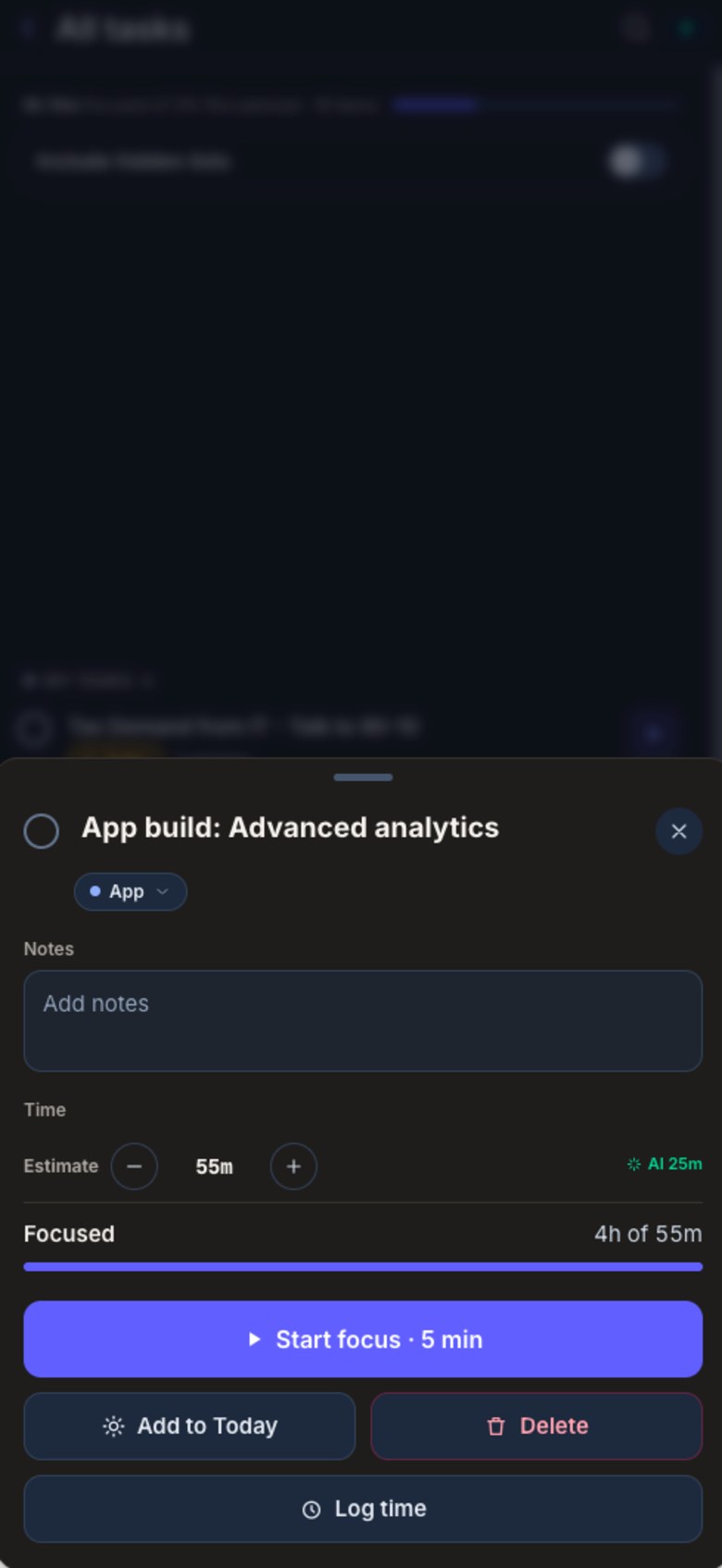
- A planned time on every task. When you add a task, the app suggests a length from its title, and you change it with a − and + stepper.
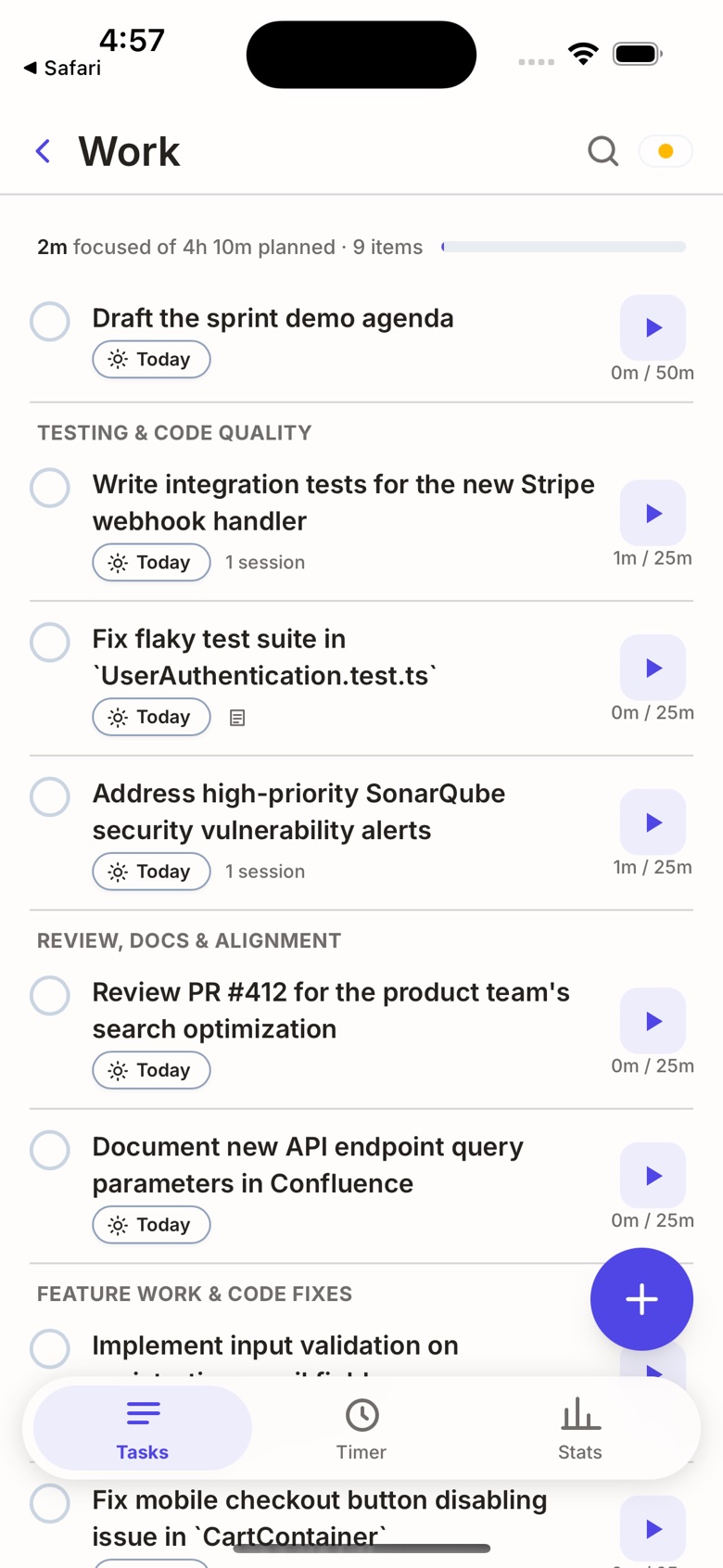
- Focused next to planned. Every task in a list shows the time you've focused against the time you planned, for example “1m / 25m”. Open a task and it says “Focused 4h of 55m”, so a box that didn't fit is plain to see.
- The whole list at a glance. The top of each list adds it up: “2m focused of 4h 10m planned”. If the planned total is more than your day, you know before you start.
- One tap to start. The play button on a task starts a focus session on it, and the time is logged to that task.
- Soft boxes, on purpose. While a session runs, tap +5, +15, +25 or +50 minutes to keep going. Let it reach zero and the session ends and is logged: that's your hard box.
- Today. Mark the tasks for today with the Today button, and Today shows focus logged today against the planned time of today's tasks.
- Your tasks, where they already are. Works with Google Tasks (synced both ways), with Todoist on Pro, or with lists on your phone and no account at all.
Your history stays on your iPhone and, if you connect Google, in a private app folder in your own Google Drive.
How to timebox your day with Tasks 'n Timers
- Get the app. Download Tasks 'n Timers on the App Store.
- Mark today's tasks. Tap Today on the tasks you'd like to finish today.
- Set each box. Open a task and adjust its estimate. Keep the suggested length if it looks right.
- Check the total. Today's planned time should fit the hours you really have. If it doesn't, take a task out of Today now.
- Tap play on the first task. The session starts on that task.
- Check in as the countdown runs low. Hard box: let it end. Soft box and still going well? Tap +5 to +50 minutes.
- Read the gap. Each task shows focused against planned. Over on every “quick” task? Box them bigger tomorrow.
Timeboxing in Scrum and agile
In Scrum, timeboxing applies to meetings rather than tasks. The Scrum Guide gives each event a maximum length. The Daily Scrum is 15 minutes. For a one-month Sprint, Sprint Planning gets up to eight hours, the Sprint Review up to four and the Sprint Retrospective up to three, and less for shorter Sprints. The Sprint itself is a timebox: the date holds, and the scope changes. The same rule works for one person and one task: fix the time, and let the time shape what gets done.
The short version
Timeboxing is deciding how long a task gets before you start. Give each task a box, start a timer on it, stop when the box ends or choose to go on, and compare the box with the time it really took. Within a few weeks your boxes fit, and your list fits your day.