 Tasks 'n Timers

If you run your life in Todoist, you already know how to capture work. Projects, due dates, a clean Today view. What Todoist doesn't do is tell you how to sit down and finish one thing. That's where Pomodoro for Todoist comes in: pick one task, give it a short block of time, and work on nothing else until the block is over.
This guide shows how to set that up with Todoist today, using only what Todoist already has. It also covers what a timer built around your Todoist tasks should do, and how Tasks 'n Timers does it.
The short answer: Todoist doesn't describe a built-in Pomodoro timer. Its own guide plans the work in Todoist and runs the blocks on any timer you like. If you want the timer to know which task you're on, use one that connects to Todoist: FocusFrog, Focus Now and Tasks 'n Timers on iPhone, Pomist on Mac, or 2day, which adds a Start button to tasks inside Todoist. Which setup fits you compares the three ways.
Why a task list alone isn't enough
Todoist is very good at the “write it down” half of productivity. A Today view with twelve tasks on it is still just a list of twelve equally important things, and it leaves the hardest decision, which one, right now?, to you.
What a list can't do is decide where your attention goes. The psychologist William James wrote in 1890 that attention is what shapes a day:
My experience is what I agree to attend to.
A day of twelve open tasks, with your attention hopping between them, is a day spent mostly switching. A task with no time attached also has, in effect, all day, so it tends to take it. Giving one task one short block is a way of agreeing, on purpose, what you'll attend to next.
The Pomodoro technique, which Francesco Cirillo developed as a university student in the late 1980s, packages that idea: one task, a fixed block, a short break, repeat.
Set up a Pomodoro routine for your Todoist tasks
Todoist's own guide to the Pomodoro technique doesn't point to a built-in timer. It says any timer will do: your phone's, a kitchen timer, or a digital Pomodoro app that integrates with Todoist. What Todoist adds is the planning side, and that's the part that makes the timer worth using. The steps below follow that guide:
- Plan in Today. Move the tasks you'll really do into Today, in the order you'll do them. Todoist suggests postponing some tasks if you're past about 12 to 14 Pomodoros for the day, so fewer than you think.
- Size each task in Pomodoros. Todoist's suggestion is to add tomato emojis to the end of the task name for your estimate, one per 25-minute block. It also suggests breaking anything bigger than four Pomodoros into subtasks.
- Start one block on one task. Set a 25-minute timer and work on that task only. If something else comes to mind, capture it in your Inbox and go back.
- Break, then repeat. Take a five-minute break after each block, and a longer one of 15 to 30 minutes after four.
- Close the loop. Complete the task in Todoist when it's done. Move anything unfinished to tomorrow instead of letting Today grow.
Or: a Pomodoro project, from Todoist's help centre
Todoist's help centre sets the method up a little differently, inside Todoist itself:
- Make a “Pomodoro” project with 8 to 10 recurring tasks: 1st Pomodoro, 2nd, 3rd and so on.
- Each day, arrange your tasks in Today under those numbered Pomodoros, with an estimate for each. Break anything over 30 minutes into smaller subtasks.
- Set a timer, traditionally for 25 minutes. When it rings, mark that Pomodoro done and take a 3 to 5 minute break; after four, take 15 to 30.
Either way, the numbered tasks or the tomato emojis are your plan, and a timer runs the blocks.
That works with any timer. The weak spot is the gap between the timer and the list. A separate timer doesn't know which Todoist task you were working on, so at the end of the day you have a pile of “25:00” blocks and no record of what they were for.
Pomodoro timers that connect to Todoist
A timer that reads your Todoist tasks closes that gap: you pick the task in the timer, and finishing it completes it in Todoist. A few that do:
- FocusFrog, listed in Todoist's integrations directory: a Pomodoro timer for iPhone that syncs tasks and completions both ways with Todoist, free during its early access.
- Focus Now, “a Pomodoro timer that tracks time on your Todoist tasks”, in Todoist's directory: on iPhone, Android and the web, with task sync in its Pro plan (a free 7-day trial).
- 2day, also in the directory: it adds a “Start” button to your tasks inside Todoist itself.
- Pomist: “a native Mac app that brings the Pomodoro technique to Todoist”, in its own words.
- Toggl Track, the app Todoist's help article names: a time tracker rather than a Pomodoro timer, for when you want timesheets.
- Tasks 'n Timers, for iPhone: below.
Todoist's time-tracking directory lists more. For a side-by-side table of the iPhone options, read our comparison of Pomodoro apps for Todoist and Google Tasks.
Which Pomodoro setup fits you?
| Setup | What you need | What you get | What you give up |
|---|---|---|---|
| Todoist's own method | Todoist and any timer: your phone's, a kitchen timer | The plan in Todoist, blocks on the timer; free | The timer doesn't know the task, so there's no record of where the time went |
| A timer that connects to Todoist | One of the apps above | Pick the task in the timer; completions go back to Todoist; time logged per task | Another app to learn, and the Todoist link is often in a paid plan |
| A time tracker | Toggl Track or another from Todoist's directory | Timesheets and reports by project | It tracks time rather than running Pomodoro breaks |
If you're trying the technique for the first time, start with Todoist's own method for a week. Move to a connected timer when you want to know where the time actually went.
Tracking time on Todoist tasks: estimate, then compare
People who want to track time on Todoist tasks usually want one of two things: how long a task will take, or how long it did take. Todoist covers the first with task durations, which you can add in the task name or in the scheduler. A duration says how long you plan to spend. It isn't a record of how long you did spend, and Todoist lists separate time-tracking integrations for that.
Getting both is what turns a Pomodoro habit into planning that improves. Hofstadter's Law says it always takes longer than you expect, even when you account for Hofstadter's Law. The only fix is feedback: estimate, time the work for real, and compare. Our guide to Pomodoro tracking shows how to do that.
Tasks 'n Timers with Todoist
Tasks 'n Timers is an iPhone app where your task list and a focus timer are the same screen. It works with Todoist, with Google Tasks and with lists that live only on your phone. This is what it does with Todoist, so you can see whether it fits how you work:
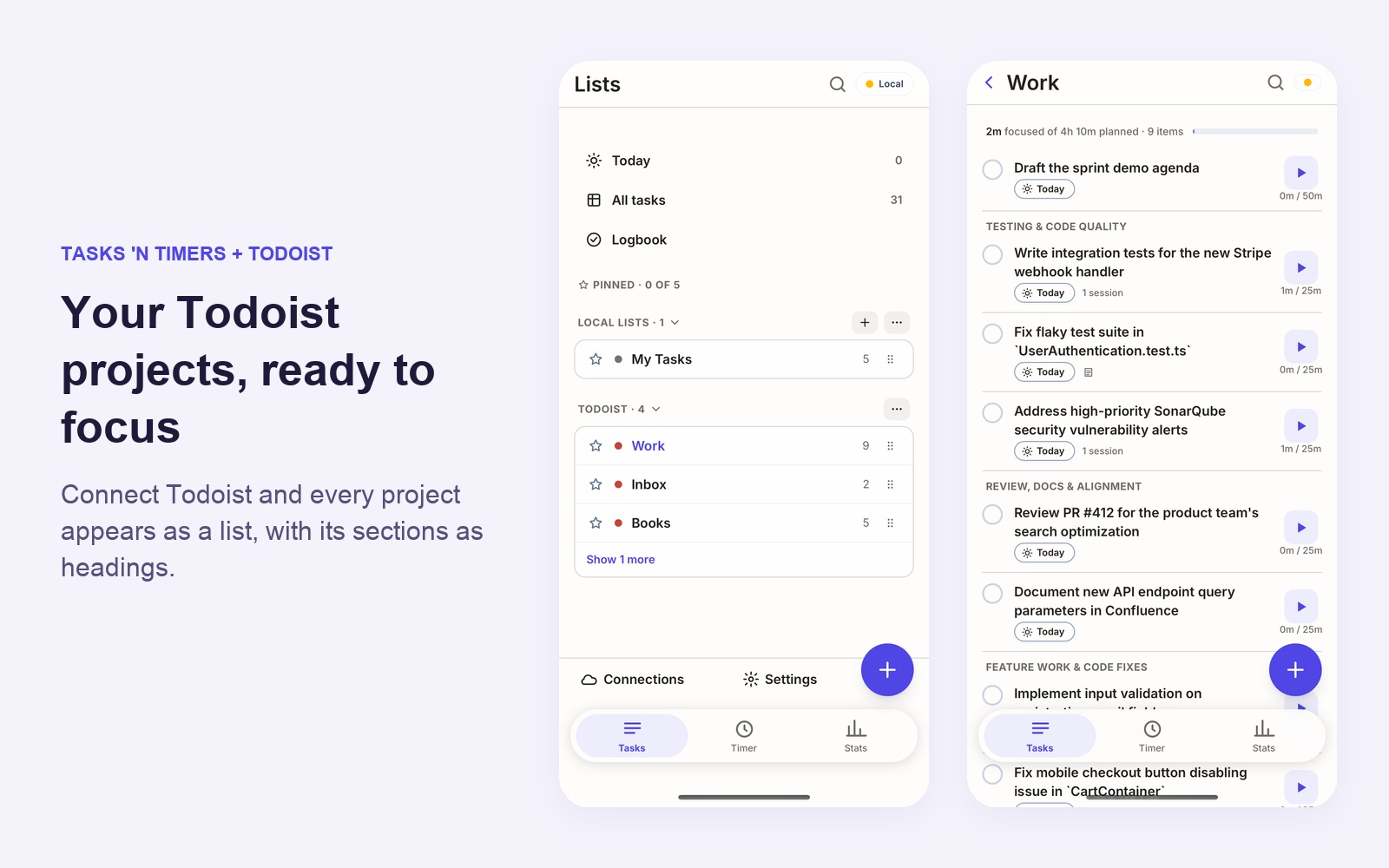
- Your Todoist projects as lists, with subtasks as rows and sections as headings.
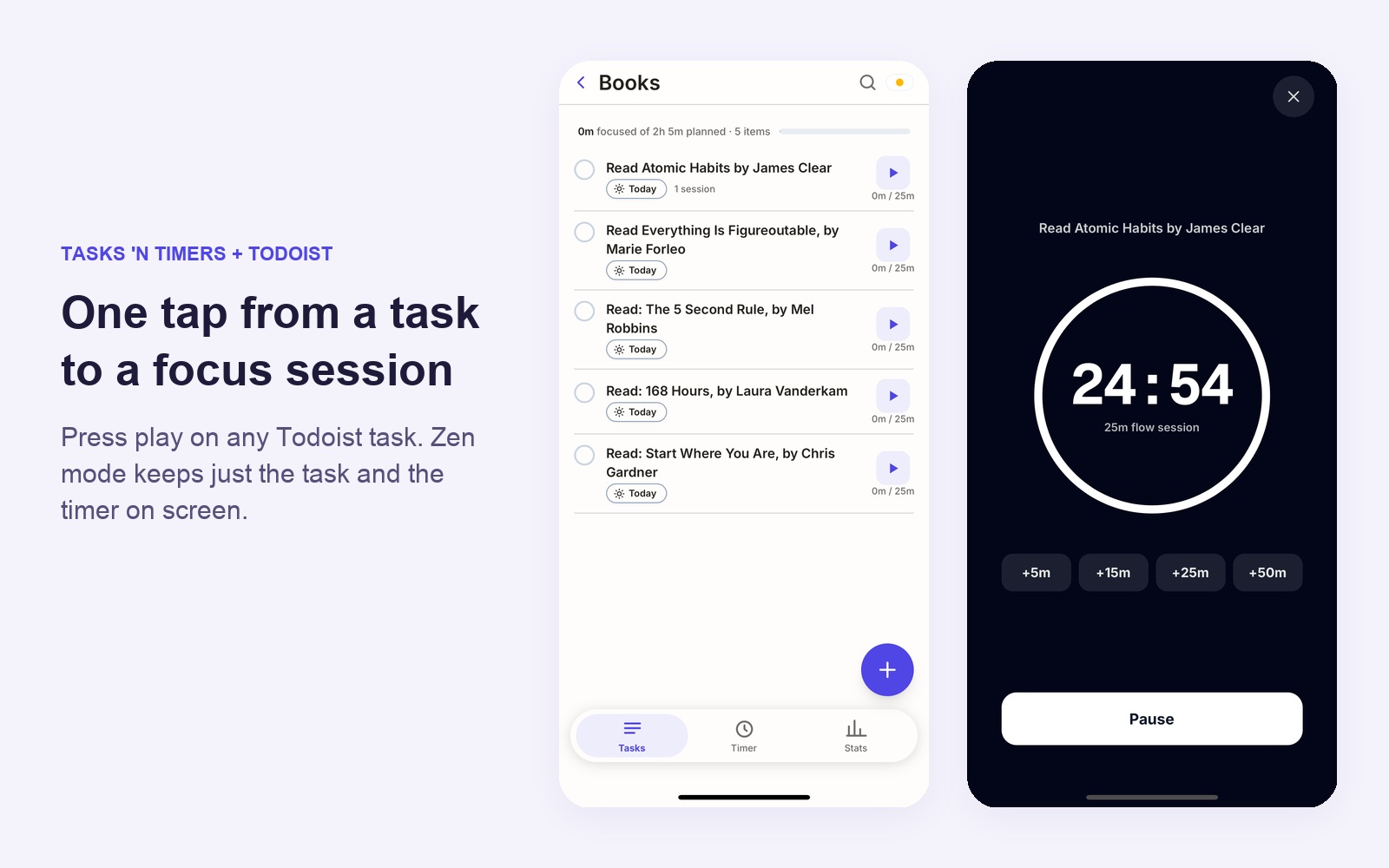
- One tap from a Todoist task to a focus session, with the time logged against that task.
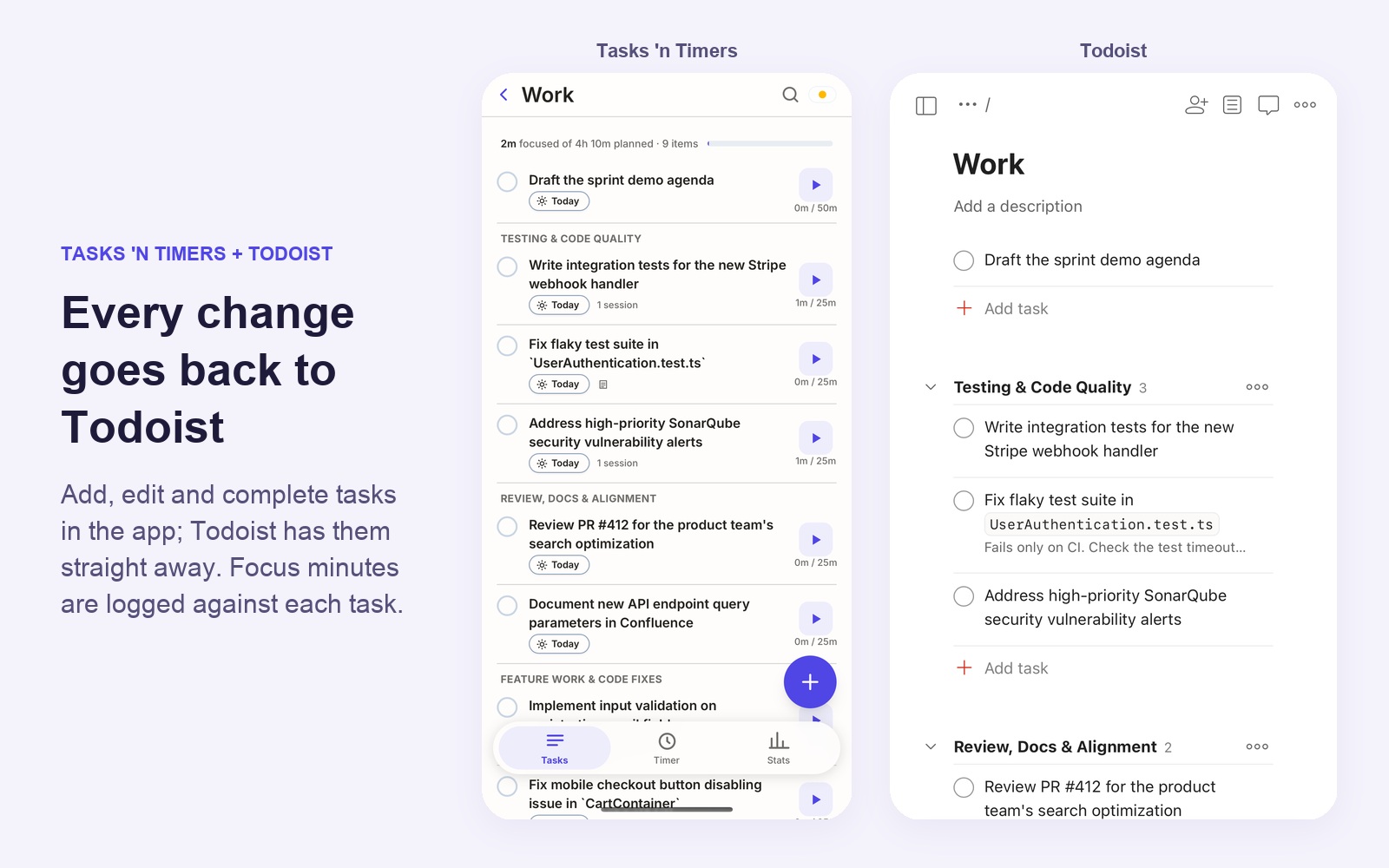
- Complete, edit and add Todoist tasks from the app, with changes sent back to Todoist.
- Today, estimates and your week in one place, the same as for Google Tasks.
- Your focus history stays yours, on your iPhone and, if you also connect Google, in a private app folder in your own Google Drive. Nothing goes to servers of ours.
The timer, local lists and Google Tasks are free. Todoist is part of the optional Pro upgrade: monthly or yearly with a free trial week, or a one-time Lifetime purchase.
See it in action
Watch the walkthrough (1:44, captioned): connect Todoist, open a project, run a focus session on a task, then edit, add and complete tasks and see each change in Todoist.
Connect your Todoist account
- Download Tasks 'n Timers from the App Store on your iPhone.
- Open the app and go through the short welcome tour.
- Tap Tasks, then Connections.
- On the Todoist card, tap See what Pro includes and choose a plan: the free week on Monthly or Yearly, or Lifetime.
- Tap Connect Todoist, sign in to Todoist and tap Allow access.
- Your projects appear as lists. Open one and tap the play button on any task to start a focus session.
The short version
You don't need a new system to use the Pomodoro technique with Todoist. Plan Today, size each task, run one block at a time on one task, and review what actually happened. A timer that knows which task you're working on makes that last step possible. Tasks 'n Timers is one, for Todoist and for Google Tasks.
Sources and further reading
What this guide says about Todoist and the other timers comes from their own pages, checked on 2026-10-29 and 2026-11-15:
- Todoist: the Pomodoro technique: the steps, tomato emojis in task names, subtasks above four Pomodoros, break lengths, the 12 to 14 Pomodoro daily limit, and the note that any timer works.
- Todoist Help: Pomodoro with Todoist: the Pomodoro project with 8 to 10 recurring Pomodoros, subtasks over 30 minutes, 3 to 5 minute breaks, and Toggl Track as a connected app (checked 2026-11-15).
- Todoist Help: Set a task duration: how to add a duration to a task.
- Todoist integrations: time tracking: the apps Todoist lists for tracking time.
- FocusFrog and its Todoist directory listing: two-way Todoist sync, free during early access (checked 2026-11-15).
- Focus Now in Todoist's directory and its own pages: a Pomodoro timer that tracks time on Todoist tasks; iPhone, Android and the web; task sync in Pro with a free 7-day trial (directory checked 2026-11-24, its own pages 2026-11-04).
- 2day in Todoist's directory: a “Start” button added to your Todoist tasks (checked 2026-11-04).
- Pomist: its description of itself as a Mac app for Todoist (checked 2026-11-15).
Tasks 'n Timers is not created by, affiliated with, or supported by Todoist.