 Tasks 'n Timers

It's Friday afternoon. Your inbox has 40 unread emails, your to-do app has 120 tasks, and a sticky note on your monitor says “call about the thing”. You know a weekly review would fix it. You also know the last one stalled somewhere around step 6 of 11, and the projects you most needed to look at never got a look.
The GTD weekly review is the habit that keeps a Getting Things Done system trustworthy. It's also the habit most people drop first. This guide keeps what makes it work and cuts what makes it drag: a quick sweep of your inboxes, then most of the hour on your projects, then a short list of what you're committing to this week. A free checklist keeps you on track, and if your tasks are spread over several apps, this guide shows how to review them all in one place.
What is the GTD weekly review?
The weekly review is a once-a-week check of everything you've committed to, from David Allen's Getting Things Done. Allen calls it the critical success factor of the whole method: the daily habits only work if you trust your lists, and you only trust them if you look at all of them regularly.
The classic review has three parts and 11 steps:
- Get clear: collect loose papers, get every inbox to zero, empty your head.
- Get current: review next actions, the past and coming calendar, Waiting for, projects and checklists.
- Get creative: review Someday/Maybe and think up new projects.
All of it is useful. Done in full, it's also two or three hours, and that's why so few people finish it.
Why the classic review doesn't get done
- It has 11 steps of equal weight. The steps that matter most (your projects) sit in the middle, after the energy has gone into inboxes.
- It turns into doing. You open an email to file it, reply to it, and half an hour later you're still on step 2.
- The lists are too long to read. A next actions list of 120 tasks, half of them stale, is painful to read line by line, so you don't.
- It's spread across too many apps. Work tasks in Todoist, home in Google Tasks, the shopping list in Reminders: reviewing them means opening each app and reading each list in a different layout.
- It has no end. “Review everything” can fill an afternoon, so it gets put off to next week, and the week after.
Tiago Forte makes the same case in his one-touch guide to the weekly review: a weekly review should be a short check-in, not a life overhaul. His version is a fast sweep of five digital inboxes (email, calendar, desktop and downloads, notes, tasks) in about 30 minutes, touching each item once and passing it down to the next. It ends in his task manager, Things, where he goes through his projects and areas and marks what he's committing to with Things' Today list.
That sweep is the best way we know to get clear. But it treats the tasks as the last inbox to empty, and it assumes all your tasks live in one app. GTD puts a different question at the heart of the review: is each of your projects moving, and what's its next step? And most people's projects are spread over more than one app.
The one-hour review: sweep, projects, commit
This review takes the fast sweep from Tiago and the project review from Allen, and gives the projects the most time:
| Part | Time | What you do |
|---|---|---|
| 1. Sweep | 20 min | Go through email, calendar, desktop and downloads, and notes. Capture anything that needs doing into your task inbox. Don't do it. |
| 2. Projects | 30 min | Empty the task inbox into projects, then review every project: is the outcome still right, what's the next action, does anything need a date? |
| 3. Commit | 10 min | Put this week's tasks on one list (your Today list), and glance at Someday. |
The sweep exists to feed the project review. Everything you find in your inboxes lands in one place, your task inbox, so that when you reach your projects you're deciding with the whole week in front of you. And the project review is where the week's real output comes from: the next actions you'll work on and the calendar events you need to book.
Before you start
- Pick a regular slot. Friday afternoon closes the week while it's fresh; Sunday evening sets up Monday. The same slot every week is what matters. Put it in your calendar as a meeting with yourself.
- Give it the full hour. If the sweep runs over, take the time from the commit part, never from the projects.
- Have all your lists in one place. If your tasks live in more than one app, bring them together before you start (see Do your weekly review in Tasks 'n Timers), so part 2 is one pass, not three.
- Decide, don't do. If something takes less than two minutes, do it (Allen's two-minute rule). Anything longer becomes a task and goes in your task inbox.
The free weekly review checklist
Weekly review checklist
0 of 8 done
1. Sweep · 20 min
The trigger list
- Work: Projects started or not started, Promises to colleagues or clients, Meetings to arrange or follow up, Reports, reviews, deadlines.
- Home: Repairs and maintenance, Cleaning and tidying, Things to buy, Paperwork and bills to file.
- People: Calls and messages to return, Birthdays and presents, Thank-yous, Things you said you would do for someone.
- Money: Bills and payments, Subscriptions to cancel, Taxes, receipts, refunds, Savings and budgets.
- Health: Appointments to book, Prescriptions, Exercise and sleep, Things you keep putting off.
- Errands and fun: Returns and pick-ups, Travel and trips to plan, Things to learn or try, Books, films, places.
2. Projects · 30 min
3. Commit · 10 min
The one-hour timer
Optional: Sweep 20 min, Projects 30 min, Commit 10 min. It moves to the next part on its own.
Tick each step as you go. Your ticks stay in this browser, so you can close the tab and come back; press Reset when you start next week's review. The timer below the checklist is optional: start it if you want a nudge when a part's time is up. Prefer paper? Print the checklist prints just the list, with empty boxes.
How to do each step
The flowchart shows where each task goes, from the sweep to this week's list.
Sweep: 1 Email, 2 Calendar, 3 Desktop and downloads, 4 Notes. Every new task goes into your task inbox. 5 Empty the task inbox: a task with more than one step becomes a project on your project list; a single task goes on your next actions list. 6 Review each project: if the outcome is no longer right, move it to Someday or drop it; if it has no next action, add one; if something needs a date, put it on the calendar. 7 This week's list: put the tasks you commit to on one list. 8 Glance at Someday, and move anything you're ready to start back into your projects.
Part 1: Sweep (20 minutes)
The rule for the whole sweep: touch each item once. Look at it, decide whether there's something to do, capture that into your task inbox, and move on. You'll process the task inbox in part 2, so you can let go of each item with confidence.
1. Email
Start with email, because it's where most new work arrives and it shapes everything after it. Go through the inbox once. For each email: archive it, do it if it takes under two minutes, or capture the task it implies (“Send Priya the budget”) into your task inbox and archive the email. Invitations go straight to the calendar. Don't reply to anything long; that's the trap that eats the hour.
2. Calendar
Your calendar is the hard landscape of your week: things that must happen at a set time. Look two weeks back for loose ends: a follow-up you promised in a meeting, a thank-you, a decision someone is waiting for. Then look four weeks ahead for what needs preparing: slides, travel, a present. Capture each one as a task.
3. Desktop, downloads and paper
Clear the places where files and paper pile up: your computer desktop, the downloads folder, the papers on your desk. For each one: delete it, file it, or capture the task it stands for. A forgotten attachment in downloads is often a promise you made to someone.
4. Notes, and anything still on your mind
Your mind is for having ideas, not holding them.
Skim the notes you took this week (in your notes app, notebook, voice memos) and capture any action in them. Then take two minutes to write down anything else still on your mind. If you get stuck, the trigger list in the checklist runs through work, home, people, money and health to jog your memory.
Part 2: Projects (30 minutes): the heart of the review
A project is any outcome that takes more than one step: “Launch the new website”, “Plan Mum's birthday”, “Fix the leaking tap”. Areas are the ongoing parts of your life that hold them: work, home, health. Your projects are where the week's work comes from, so this part gets the most time.
In most to-do apps a project or an area is simply a list. If your lists are spread over Google Tasks, Todoist and Reminders, open them together in one place and go through them in one pass.
5. Empty the task inbox into your projects
During the sweep you wrote every new task into one list, your task inbox (Todoist's Inbox, a list called “Inbox” in Google Tasks, or your default list in Reminders). Now go through that list once, until it's empty. For each task: rewrite it as a clear next action (“Email Sam the draft”, not “Report”) and move it to the project list it belongs to. If it starts something new with more than one step, make a new project for it. If it's a single standalone task, move it to your next actions list.
6. Review each project
Now go list by list, one project or area at a time, and ask three questions:
- Is the outcome still right? Keep it, move it to Someday, drop it, or mark it done. A shorter list of real projects beats a long list of wishes.
- What's the next action? Every live project needs at least one next action you could start today. A project with no next action is stuck: add one now. Tick off actions that are done, and delete ones that no longer matter.
- Does anything need a date? A meeting to book, a deadline to note, time to block for the hard part. Put it on the calendar now.
Long project list? Go fast: a few seconds for each project that's clearly moving, and spend the time on the stuck ones. Things you're waiting on from other people belong here too: if a project is waiting on someone, note it and add a follow-up if it's overdue.
Part 3: Commit (10 minutes)
7. Put this week's tasks on one list
From the next actions your project review produced, pick the ones you're committing to this week and put them on one list. Tiago uses Things' Today list for this, and treats it as his list for the week; any app's Today, starred or “This week” list works the same way. Be selective. A list you can actually finish keeps you motivated; a list of everything doesn't. Next week's review picks the next round.
8. Glance at Someday
Optional, and quick: read your Someday list. Move anything you're ready to start into your projects, delete what no longer interests you, and add any new idea that came up during the review.
Where the classic 11 GTD steps went
Nothing important is lost; it's reordered so the projects get the time:
| Classic GTD step | In this review |
|---|---|
| Collect loose papers and materials | Step 3: desktop, downloads and paper |
| Get inboxes to zero | Steps 1–4: the sweep (email, calendar, files, notes) |
| Empty your head | Step 4: anything still on your mind, with the trigger list |
| Review next actions lists | Steps 5 and 6: each project's next action |
| Review past calendar data | Step 2: two weeks back |
| Review upcoming calendar | Step 2: four weeks ahead |
| Review Waiting for | Step 6: waiting-on items, by project |
| Review project lists | Step 6: the heart of the review |
| Review any relevant checklists | Step 2 (recurring dates) or step 6 (by project) |
| Review Someday/Maybe | Step 8 |
| Be creative and courageous | Step 8: new ideas go to Someday or projects |
Do your weekly review in Tasks 'n Timers
Tiago runs his whole review inside one task manager. Most people can't, because their tasks are in two or three apps: Todoist for work, Google Tasks from Gmail, Reminders from Siri. Tasks 'n Timers brings those lists into one app, so the project review and the week's list happen in one place, without moving anything out of the apps you already use.
- Connect your apps. Sign in with Google and every Google Tasks list appears. With Pro, connect Todoist and Apple Reminders too: their projects and lists appear next to your Google lists. Changes sync both ways.
- Sweep into one inbox. Part 1 happens where those things live: email in your mail app, files on your computer, notes in your notes app. Capture each task they produce into one list, for example a Google Tasks list called Inbox, so step 5 happens in one place.
- Go list by list. In part 2, open each list in turn, whichever app it lives in. Each list is a project or an area. Check that it has the right next actions, tick off what's done, delete what's stale, and add the next action where one is missing.
- Add this week's tasks to Today. In step 7, tap Add to Today on each task you're committing to this week, from any list in any app. Today becomes your one list for the week, across all your apps.
- Work from Today all week. Start a focus session on any task in Today, and it records the time you spend. By next week's review, you'll see which lists and projects actually got your time.
Tasks 'n Timers is on iPhone today; Google Tasks is free, and Todoist and Reminders need Pro.
If all your tasks are in one app
- Google Tasks: make a list called Inbox for the sweep, a list per project (or a task with subtasks when it's small), and a Someday list. Star the week's tasks in step 7.
- Todoist: its Inbox takes the sweep. Use projects for your projects, a
@waitinglabel for things you're waiting on, and a Someday project. Give the week's tasks a date this week in step 7. - Apple Reminders: the default list is the inbox, with a list per project or area and a Someday list. Flag the week's tasks in step 7.
What we're building: the weekly review, guided
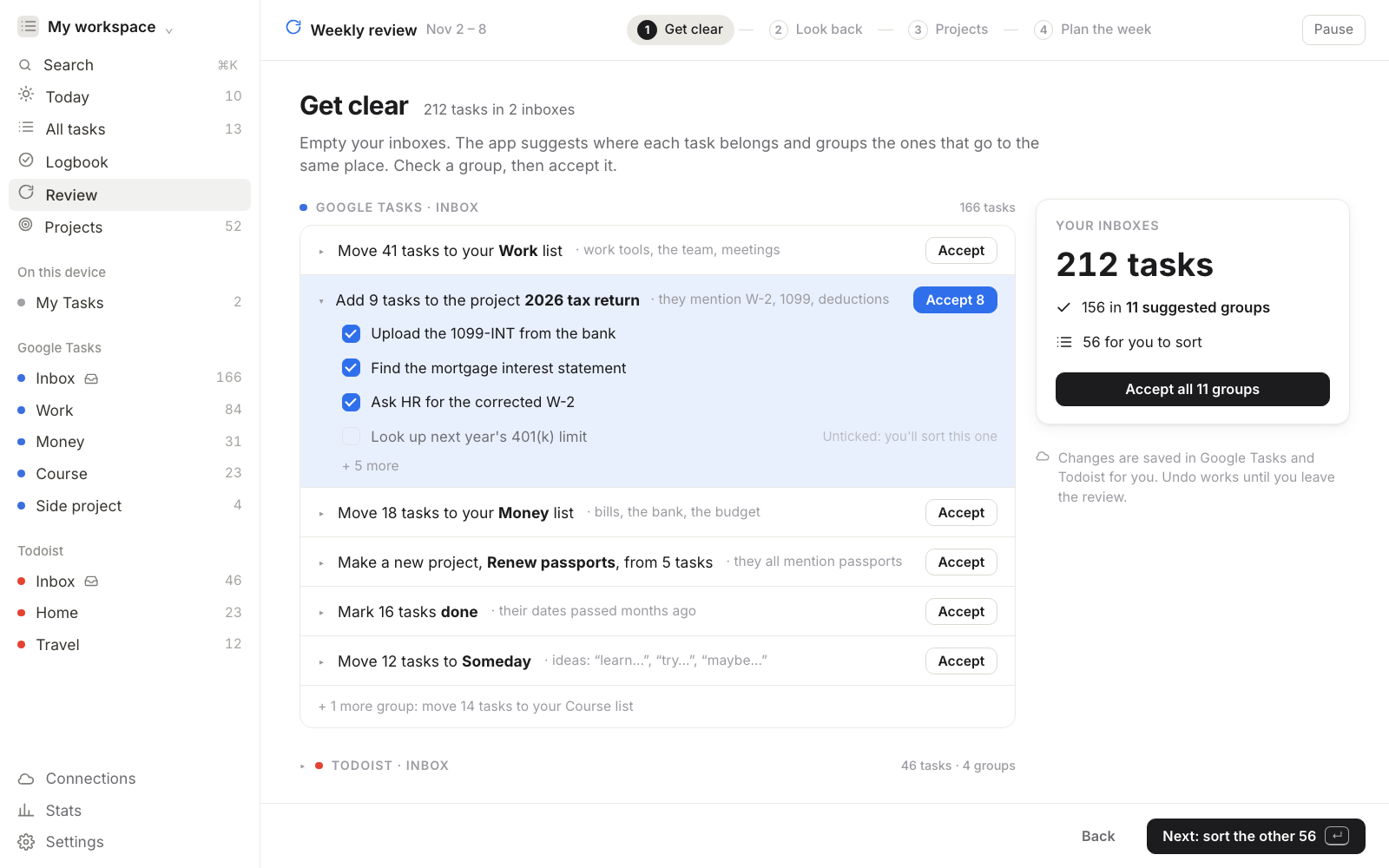
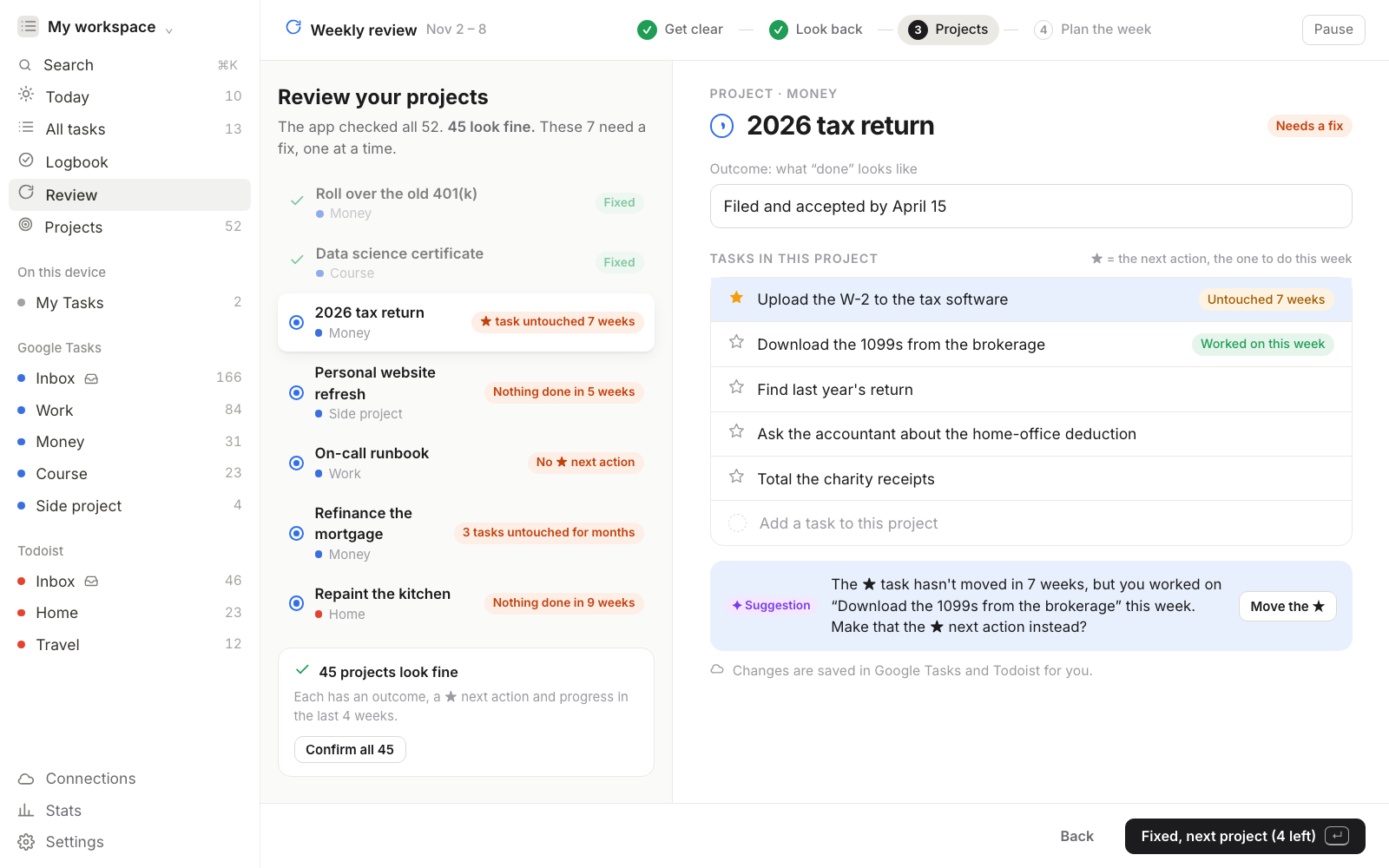
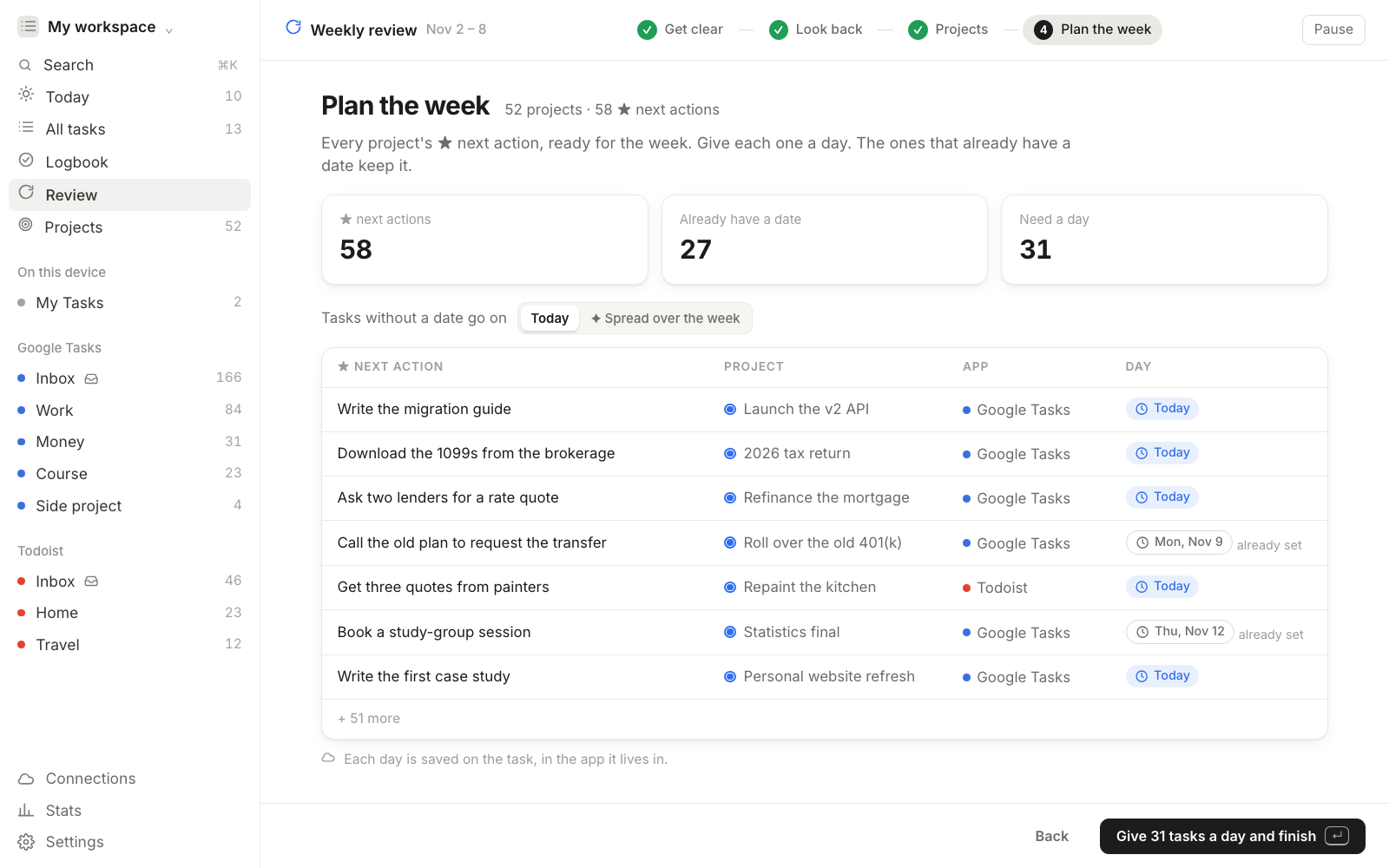
We're building a guided version of this review: every list from every to-do app you use, worked through step by step in one focused hour. You make the decisions; the app does the sorting, the checking and the filing.
Get early access. Tell us which to-do apps you use, and we'll email you when it's ready. Early birds get 3 months free.
Form not showing? Open the form in a new tab.
Common mistakes
- Doing the work during the sweep. Capture the task and move on. The sweep is for collecting; the projects part is for deciding.
- Spending the hour on inboxes. The sweep is 20 minutes. If it runs over, cut the commit part, not the projects.
- Projects with no next action. They look fine on the list and never move. Step 6 exists to catch them.
- Committing to everything. A week's list of 30 tasks isn't a plan. Pick what you can finish.
- Reviewing only the app you open most. The lists you keep in your other apps are the ones that go stale. Review every list, in every app, each week.
- Skipping it after a busy week. That's the week you need it most. Do a short one: email, calendar and the project review in 30 minutes are better than none.
The short version
- The classic GTD review has 11 steps and rarely gets finished. This one has 8 steps in three parts: sweep, projects, commit.
- Give it one hour: about 20 minutes to sweep your inboxes, 30 for your projects, 10 to commit.
- Review every list in one place, even when your tasks live in Google Tasks, Todoist and Reminders, and put the week's tasks on one Today list.
- Sweep, don't do: everything goes into one task inbox, which feeds the project review.
- The heart of the review is step 6: every project has the right outcome, a next action, and its dates on the calendar.
- Use the free checklist above every week; print it if you prefer paper.